ENKVM-PS2 2-Port PS/2 KVM switch with built-in cables User Guide 0
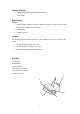
Package Contents • 1 ENKVM-PS2 KVM Switch with Attached Cables • 1 User Guide Requirements Console • A VGA, SVGA, or Multisync monitor capable of the highest resolution that you will be using on any computer in the installation • A PS/2 Mouse • A PS/2 Keyboard Computers The following equipment must be installed on each computer that is to be connected to the system: • A VGA, SVGA or Multisync video port • A 6-pin Mini-DIN (PS/2 style) mouse port • A 6-pin Mini-DIN (PS/2 Style) keyboard port
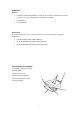
Installation B NOTE: 1. Before you begin, make sure that the power to all the devices you will be connecting has been turned off. You must unplug the power cords of any computers that have the Keyboard Power On function. Otherwise, the switch will receive power from the computer. 2. To prevent damage to your equipment, make sure that all the devices you will be connecting are properly grounded Installing your new ENKVM-PS2 involves the following steps: 1.
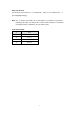
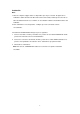
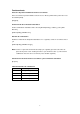
Auto Scan Interval Sets the Auto Scan interval to “n” second intervals - where “n” is a number from 1 – 4. [Left shift] [Right shift] [n] Note: The “n” stands for the number of seconds that the focus dwells on a port before switching to the other one. Replace the “n” with a number between 1 and 4 when entering this hotkey combination. (See the table, below.) Scan Interval Table n Secs. 1 3 secs. (Default) 2 5 secs. 3 10 secs. 4 20 secs.
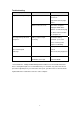
Troubleshooting Symptom Keyboard Not Responding Possible Cause Keyboard needs to be reset. Action Unplug the keyboard from the Console Keyboard Port, then plug it back in. Switch needs to be reset. Turn off the computers. Unplug the KVM cables. Wait five seconds; then plug the cables back in and turn the computers on. Pressing Hot Keys Gets No Hotkey sequence input Resend the Hotkey Response* incorrectly. command – press and release each key in the sequence individually.
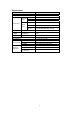
Specifications Function Computer Connections Port Selection Console Ports Connectors KVM Ports Keyboard Video Mouse ENKVM-PS2 2 Hotkey 1 x 6-pin Mini-DIN Female (Purple) 1 x HDB-15 Female (Blue) 1 x 6-pin Mini-DIN Female (Green) Keyboard 2 x 6-pin Mini-DIN Male (Purple) Video 2 x HDB-15 Male (Blue) Mouse 2 x 6-pin Mini-DIN Male (Green) LEDs Selected Cable Computers Length Emulation Keyboard/ Mouse Video Scan Interval Operating Temp. Environment Storage Temp.
ENKVM-PS2 Concentrador KVM de tipo PS/2 con 2 puertos Manual del usuario 6
Requisitos Consola • Un monitor VGA, SVGA o Multisync capaz de representar la resolución más elevada que vaya a usar con cualquiera de los ordenadores a instalar • Un ratón PS/2 • Un teclado PS/2 Ordenadores En cada ordenador que vaya a conectar al sistema se tienen que instalar los siguientes componentes: • Una tarjeta gráfica VGA, SVGA o Multisync • Un puerto Mini-DIN de 6 patillas (PS/2) para ratón • Un puerto Mini-DIN de 6 patillas (PS/2) para teclado Presentación del hardware 1.
Instalación Nota: 1. Antes de empezar, apague todos los dispositivos que vaya a conectar. Si alguno de los ordenadores utiliza la función de Encender a través del teclado, tendrá que desconectar su cable de alimentación. En caso contrario, el concentrador recibirá la electricidad a través del ordenador. 2. Para evitar daños en los dispositivos, verifique que estén conectados a tierra correctamente. La instalación del ENKVM-PS2 incluye los pasos siguientes: 1.
Funcionamiento Selección de puertos mediante teclas de acceso directo Para seleccionar un puerto mediante teclas de acceso directo, primero debe pulsar dos veces la tecla Bloq Despl. [Ctrl] [Ctrl] Activa el modo de conmutación automática Inicia la conmutación automática. Pulse la tecla [Shift izquierdo] y suéltela, y pulse [Shift Derecho]. [Shift izquierdo] [Shift Derecho] Intervalo de conmutación Establece el intervalo de búsqueda automática en “n” segundos, siendo “n” un número entre 1 y 4.
Resolución de problemas Síntoma El teclado no funciona Causa posible Hay que resetear el teclado. Acción Desconecte el teclado del puerto de consola para teclado y vuelva a conectarlo. Hay que resetear el Apague los ordenadores. concentrador. Desconecte los cables KVM. Espere cinco segundos, vuelva a conectar los cables y encienda los ordenadores. Las combinaciones de Secuencia de pulsación de Vuelva a enviar el comando teclas de acceso directo teclas incorrecta.
Especificaciones Función Conexiones para ordenador Selección de puertos Puertos de consola Conectores Puertos KVM Indicadores LED Teclado Monitor Ratón ENKVM-PS2 2 Teclas de acceso directo 1 mini-DIN hembra de 6 patillas (violeta) 1 conector HDB hembra de 15 patillas (azul) 1 mini-DIN hembra de 6 patillas (verde) Teclado 2 mini-DIN hembra de 6 patillas (violeta) Monitor 2 conector HDB hembra de 15 patillas (azul) Ratón 2 mini-DIN hembra de 6 patillas (verde) Puerto seleccionado 2 (verde) Longitu