
User's Manual

M1 Installation and Programming Manual
Page 20
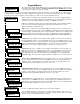
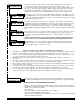
This menu allows the keypad to be mapped temporarily to any other area, allowing multi-
area (partitioned) operation. The mapped area can be armed, disarmed, and otherwise
controlled just as if the keypad were permanently assigned to that area. It may also be
used to display a snapshot of all areas at once, showing the status of each area at once.
Press the RIGHT arrow key to select and display the following screen.
Enter a valid user code. The control does not allow (restricts) mapping or viewing of
areas that are not authorized for the user code. The following screen will be displayed:
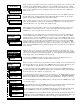
MAPPING TO AN INDIVIDUAL AREA
Enter the area number to be mapped OR scroll UP and DOWN with the arrow keys.
Pressing the Exit or * key will map the Keypad to the area shown. The keypad will now
display the status, including LEDs and the LCD screen of the mapped area. For the next
1 minute it will be possible to arm, disarm, bypass, etc. the mapped area from this
keypad. The 1 minute will be extended with each keypress. The keypad will return to its
primary assigned area after 1 minute of no keypress activity.
MAPPING TO A CONSOLIDATED DISPLAY OF ALL AREAS
Pressing the
rr
rr
r RIGHT arrow key will map the Keypad to a consolidated ‘snapshot’
display of all areas which the user code was authorized to operate. This display permits
quick arming and disarming only. If a area is not ready to arm it will be necessary to map
individually (see steps above) to that area to view the violated zone(s) and either secure or
bypass them prior to arming.
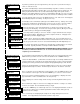
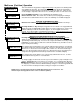
The example at left shows that the user code was authorized for all 8 areas, as indicated
by a letter beneath each of the 8 area numbers. The letters show the status of each area.
A lower case “r” means the area is Ready to Arm, a lower case “n” means Not Ready, a
upper case “A” means Armed, and a upper case “X” means that area is the primary area
assigned to the Keypad which cannot be operated from the consolidated display.
The example at left shows that the user code was only authorized for areas 1, 2, and 3.
The unauthorized area(s) have a “-” beneath them.
To change (toggle) the arm status of an area, press the number key representing the area
number. IMPORTANT: The area status is not “real time”. It is a snapshot taken when the
rr
rr
r RIGHT arrow key was pressed. If a zone has since become violated the area will still
be displaying “r”, however the letter will immediately change to “n” and the keypad will emit
an error tone when an attempt is made to arm by pressing the area number.
0-Select Keypad
Alternate Area r
Auth. Required
Enter Valid Pin
Select Area- 1 r
[Area Name]
READY TO Arm
[Area Name]
Multi-area (Partition) Operation
Select Area- 1 r
[Area Name]
Area# 12345678
Status= Xr r r r r r r
Area# 12345678
Status= Xr r - - - - -
NOTE: This is a new feature which became available with firmware release version 4.2.5. The
firmware may be flash upgraded in older controls to add this capability.