
Technical data



Electronic Scales –models ETS хх L1, L2, B1, B2, S1, S2
21
2.4.4. EDIT PREDEFINED TARES – Editing 50 previously saved Tares, independently those set to the PLU
numbers.
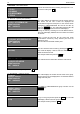
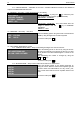
EDIT PREDEFINED TARE 01.
TARE=00.000/01.284
The scale will show Tare number 0 and the current value of
the weight on the right part. The 2 numbers are divided by
the symbol: „ / „
To change to NEXT/PREVIOUS saved Tare use the
+ / - keys.
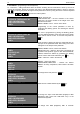
EDIT PREDEFINED TARE 01.
TARE=01.284/01.284
Place the desired load you wish save as a Tare. After the
value is shown in the right part of the display press the Т
key. As a result the saved value in the left part will change
to the current value from the right part of the display.
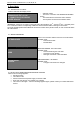
ENTER TARE NUMBER=15
(01..50)
To go directly to other group number, press the PLU key.
The scale will display a field to enter the number. Enter the
desired department number.
For example: 15 and press the PLU key.
EDIT PREDEFINED TARE 15.
TARE=00.720/01.200
If you want repeat the steps described above to set a new
Tare.
To exit the mode press CP
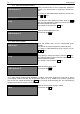
3.SYSTEM SETUP
SYSTEM SETUP
1. INTERFACE
2. COUNTRY
3. DECIMAL POINT, MONEY
4. WEIGH MODULE
Menu: SYSTEM SETUP
1. Interface Setup – RS232,IP address,printer
2. Language Setup – keyboard, display
3. Decimal Point and Currency Setup
4. Weigh Module Setup: CALIBRATION
3.1. SYSTEM
3.1.1 INTERFACE SETUP: serial port, scale number, IP address, serial port for printer connection
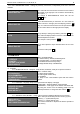
SETUP INTERFACE:
1. PC,BAUD=038,4
2. SCALE NUMBER=00
3. ETHERNET IP=192.168.0.79
4. PRN,BAUD=009.6
Menu: Interface Setup
1. Speed setup for RS232
2. Scale logical number setup
3. IP address
4. Setup of the communication speed with the build in
printer.
3.1.2 COUNTRY – language setup of the keyboard and the display; code page
COUNTRY:
LANGUAGE= BULGARIA
CODEPAGE= MIK
(change with key “+”)
LANGUAGE – Regional settings of the keyboard
CODEPAGE – Code page for the articles and labels data.
By using the arrows move the blinking pointer over the
desired parameter. To change the value use the + key.
3.1.3. DECIMAL POINT, MONEY – Setup of the currencies;correlation between the 2 currencies
SETUP DECIMAL POINT, MONEY
MONEY1= € X.XX
MONEY2= ?~~~ X.XX
MONEY1/MONEY2=0000/0000.0000
Menu: Setup of the decimal point and currency symbol
Currency 1 – symbol;decimal point
Currency 2 - symbol;decimal point
You need an external PC keyboard to add text symbols of
the currency