
Technical data



Electronic Scales –models ETS хх L1, L2, B1, B2, S1, S2
19
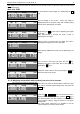
PRICE=03.00
NAME1=CHICKEN WINGS
NAME2=PORK, SEASONING
NAME3=
(Bulgarian phonetic) Rep press the Shift+Alt keys.
To exit the mode press the ESC key from the РС keyboard or CP from the main keyboard.
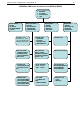
2.2. FAST KEYS MODE
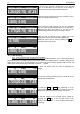
FAST KEYS
1.ENABLED/DISABLE SELFSERVICE KBD
2.EDIT SELFSERVICE KBD LAYOUT
1.Activating the Self-service mode of the keyboard
2.Editing the keyboard keys in Self-service Mode
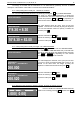
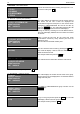
ENABLE SELFSERVICE KBD
DISABLED (change with key “+”)
1.Enable/Disable of the Self-service Mode is done by
pressing the + key.
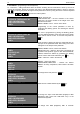
SELFSERVICE KBD LAYOUT
KEY=PLU1
PLU=000000
(press key “T” for help)
2.Setting the PLU № for every button in Self-service Mode.
The editing is done by switching to PLU № mode and
choosing a key from the keyboard which is being set up
now. When the “press key “T” for help” appears the scale
awaits to enter a PLU № from the keyboard (white
background)
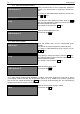
SELFSERVICE KBD LAYOUT
KEY=PLU1
PLU=000000
When the text is hidden the scale awaits to push the key
we wish to set up. Switching between the 2 modes is done
by the PRG key. Additional sign that the scale is in the
right mode is the symbol in front the KEY and PLU
2.3.PLU HANDLING – additional control of the PLU settings for the label printing
PLU HANDLING (change with key “+”)
UNLOAD AFTER PRINT ENABLED
CLEAR PLU AFTER PRINT ENABLED
Position the pointer over the desired parameter by using
the arrows. Additional index for the current parameter is the
symbol in front of ENABLED/DISABLED
UNLOAD AFTER PRINT – remember to unload the scale
after the label print.
CLEAR PLU AFTER PRINT – remember that the scale will
set to zero automatically after the label is printed.
2.4.COMMON SETUP PLU
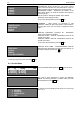
COMMON SETUP PLU
1. EDIT DEPARTAMENT NAMES
2. EDIT GROUP NAMES
3. EDIT PREFIX FOR ARTICLE NUMBERS
4. EDIT PREDEFINED TARES
Common Setup:
1. Edit names and departments
2. Edit group name
3. Edit prefix for article numbers
4. Edit predefined Tares