
Service manual




PROGRAMMING
3-12
November 2001
Part No. 001-7240-001
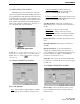
Read Setup Params - Reads the data contained
in a transceiver. This function can be used to check
transceiver programming or use the data in one trans-
ceiver as the basis for programming another. Proceed
as follows:
1. Connect the transceiver to the computer using the
RPI as described in Section 3.1.6.
2. Select Transfer > Read Setup Params or click the
toolbar button.
3. A screen is then displayed which indicates the
progress of the read operation.
4. If the transceiver contains a Program Key, you are
prompted to enter this key before the data is read.
Refer to Section 3.11.1 for more information.
Write Setup Params - Programs a transceiver
with the data that has been entered in the program.
Proceed as follows:
1. Connect the transceiver to the computer using the
RPI as described in Section 3.1.6.
2. Select Transfer > Write Setup Params or click the
toolbar button.
3. A screen is then displayed which indicates the
progress of the write operation.
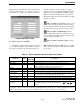
4. The following messages may be displayed by the
transceiver:
PGM MODE - Standard message while
programming is occurring.
TYPE ERR - Indicates that the programming
data is incompatible with the transceiver. A
possible reason for this is using a version of the
programming software that is not compatible
with the transceiver software.
PROG ERR - Indicates that an error was
detected when verifying the data programmed
into the transceiver.
Read Codes - This menu item or toolbar button
reads the error code log stored in the radio and
displays it. Refer to Section 2.14 for more information.
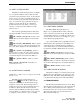
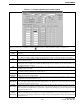
Read Factory Info - This menu item or toolbar
button displays the following screen and version infor-
mation for the transceiver connected to the computer:
ESN
- Indicates the electronic serial number of the
transceiver that is stored in the logic.
Warranty Info
- This is the transceiver identifica-
tion number described in Section 1.4.
Radio Config
- These are digits 4-10 of the trans-
ceiver part number described in Section 1.3.
Software Version
- Indicates the version of
operating software contained in the radio.
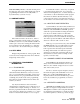
3.8 VIEW MENU
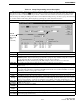
This View menu is shown above, and it is used to
enable and disable portions of the main screen shown
in Figure 3-2. More information follows:
View Toolbar - Enables and disables the toolbar (see
Section 3.3.3).
View Status Bar - Enables and disables the status bar
at the bottom of the screen (see Section 3.3.5).