
User's Manual





5
3. Home Screen
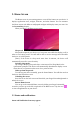
The Home screen is your starting point to access all the features on you device. It
displays application icons, widgets, shortcuts, and other features. You can customer
the Home screen with different wallpaper& widgets and display items you want. See
the Personalizing chapter.
When you sign in, the Home screen opens.
Sleep mode
Sleep mode suspends your device to a low power state while the display is off in
order to save battery power. You will still be able to receive messages and calls while
the device is in Sleep mode.
[Note]: If the device in sleep mode more than 30 minutes, the device will
automatically turn off to save electricity.
Switch to sleep mode
tap Settings>Display>Sleep and select a time interval for Sleep Mode in the
option menu prompted. The device will automatically shutdown the display screen
when there is no operation on the screen for a period of time.
Wake up from sleep mode
To wake up your device manually, press the Power Button. You will then see that
the device has locked the screen.
Unlocking the screen
Press the bar on the lock screen and then slide your finger leftwards/rightward to
unlock the screen.
Browse Home Screen
You can go to the extended Home screen by sliding your finger horizontally
across the screen to go to the left or right side of the Home screen. Tap the icon
to view all applications on your device.
3.1 Status and notifications
Status and Notification Icons may appear