
User's Manual





8
page), simply press and hold the item.
Swipe or slide: To swipe or slide means to drag your finger vertically or horizontally
across the screen.
Drag: Press and hold your finger with some pressure before you start to drag. While
dragging, do not release your finger until you have reached the target position.
Rotate: For most screens, you can automatically change the screen orientation from
portrait to landscape by turning the device sideways. When entering text, you can turn
the device sideways to bring up a bigger keyboard. Refer to Settings chapter for more
details.
3.4 Coping files to and from the storage card
You can copy music, photos/pictures and others to your device to personalize your
device.
1. Use the USB cable that came with your device to connect it to a USB port on
your computer.
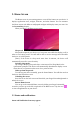
2. when the icon appears in the notification area, open the notification panel
and tap USB Connected to popup the following screen:
3. tap , when the notification icon turns yellow, the
computer will recognize your device as a removable disk;
4. find the removable disk and open it. Do one of the followings:
z Copy the files from the computer to the storage card’s root folder.
z Copy the files from the storage card to a folder in your computer or computer
desktop.
5. after copying the files, unmount the removable disk (that is, your device) as
required by your computer’s operating system to safely remove your device.