
Product manual

DMX Dump
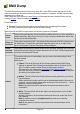
The DMX Dump functionality allows you to save the current DMX values that are sent to the
ouput universes in a particular moment. Basically it makes a "snapshot" of DMX channels and
saves them for a later use.
DMX Dump can save values to a new Scene and also add the newly created Scene into an
existing Chaser, Virtual Console button or slider
Please note that:
Selected Channels/Chasers will be remembered when re-opening this window
The DMX values saved are taken before the Grand Master
When opening the DMX Dump window, the following options will appear:
Scene
name
Defines the name that the Scene that will be created will have. If none specified, a
default name like "New Scene From Live" and a numeric identification will be set
for fast use of this functionality.
Dump all
channels
If this option is selected, QLC+ will dump all the channels of all the universes and
all the fixtures. To inform the user about what this option will do, a report in the
form of (Universes, Fixtures, Channels) will be displayed.
Dump
selected
channels
If this option is selected, the panel below will be activated, allowing you to choose
exactly the channels that you need to be saved into a Scene. They're organized in
a tree by Universes and Fixtures.
Add to
This section offers you to immediately use your scene into and existing Virtual
Console widget.
Options are:
Chaser: The list is filled with all the chasers present when DMX Dump
window is opened. Each Chaser has a checkbox that, if checked, will tell
QLC+ to add the newly created Scene to the selected chasers.
This feature is nice when using Cue Lists in the Virtual Console panel. In
this case, the newly created Scene will appear in the Cue List for immediate
use during a live performance.
Button: The list is filled with all the buttons currently present in your Virtual
Console space.
When selected, the buttons will be set to activate/deactivate the Scene just
captured. You will see the button label chaning to "Scene from live ..." and a
progress number to distinguish it.
Note: Any previous function associated to the selected buttons will be
overwritten !
Slider: The list is filled with all the sliders currently present in your Virtual
Console space.
Similarly to buttons, all the selected sliders will be set to control the Scene
just captured.
Note 1: A slider must be in playback mode to work as an intensity
controller for a Scene.
Note 2: Any previous function associated to the selected sliders will be
overwritten !
Page 16