
User's Guide




69
4
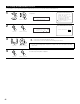
Press the Cursor left and right buttons.
The screen switches to the character input screen.
[3] Preset Name
It is possible to input station names , etc., for preset channels. These names are displayed on the front display and on the on-screen display.
3−7.Preset Name
Block A
A2
FM
89.10M㎐:
A3
FM
98.10M㎐:
A4
FM
107.90M㎐:
A5
FM
90.10M㎐:
A6
FM
90.10M㎐:
A7
FM
90.10M㎐:
A8
FM
90.10M㎐:
A1
FM
87.50M㎐:
A1FM 87.50MHz
*Preset Name
1
Select “Preset Name” at the Tuner Presets screen.
Auto Preset Memory
Preset Skip
Preset Name
Exit
3−7.Tuner Presets
Preset Name
*Tuner Presets
2
Switch to the Preset Name screen.
3
Select the preset channel whose name you want to change.
CH SEL
ENTER
(Main unit) (Remote control unit)
CH SEL
ENTER
(Main unit) (Remote control unit)
CH SEL
ENTER
(Main unit) (Remote control unit)
CH SEL
ENTER
(Main unit) (Remote control unit)
3−7.Preset Name
A1
FM
87.50M㎐:
Yes
Default
¡
Name A1
5
q Move the cursor to choose the position at which you want to
input the character using the Cursor left and right buttons.
w Select the character to be input using the Cursor up and down
buttons.
Up to 8 characters can be input.
CH SEL
ENTER
(Main unit) (Remote control unit)
CH SEL
ENTER
(Main unit) (Remote control unit)
Example: When “A1” is selected and the
Cursor left and right buttons are
pressed
AB C D E F G H I J K L M N O P Q R S T U V W X Y Z
a b c d e f g h i j k l m n o p q r s t u v w x y z
0 1 2 3 4 5 6 7 8 9
! “ # % & ‘ ( )
*
+ , – . / : ; < = > ? @ [ \ ] (space)