
User's Guide




67
4
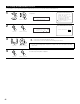
Press the Cursor left button to select “Yes”.
“Search” flashes on the screen and searching begins.
“Completed” appears once searching is completed.
The display automatically switches to the Tuner Presets screen.
[1] Auto Preset Memory
Use this to automatically search for FM broadcasts and store up to 56 stations at preset channels A1 to 8, B1 to 8, C1 to 8, D1 to 8, E1 to 8,
F1 to 8 and G1 to 8.
Auto Preset Memory
Preset Skip
Preset Name
Exit
3−7.Tuner Presets
Auto Preset
*Tuner Presets
1
Select “Tuner Presets” at the Audio Input Setup
Menu.
1.Digital In Assign
2.EXT.IN Setup
3.Input Function Lev.
4.Function Rename
5.IEEE1394 Assign
6.IEEE1394 Auto Func.
7.Tuner Presets
Exit
3.Audio Input Setup
Tuner Presets
*Audio In Setup
2
Display the Tuner Presets screen.
3
Select “Auto Preset Memory”, then press the
ENTER button.
Switch to the Auto Preset Memory screen.
CH SEL
ENTER
(Main unit) (Remote control unit)
CH SEL
ENTER
(Main unit) (Remote control unit)
CH SEL
ENTER
(Main unit) (Remote control unit)
(Main unit)
CH SEL
ENTER
(Remote control unit)
CH SEL
ENTER
(Main unit)
(Remote control unit)
3-7. Tuner Presets
3−7.Auto Preset Memory
Auto Tuning &
Preset Station Memory
Storing Preset Memory
Start
Ye s
Start :Yes
*Auto Preset
NOTE:
• If an FM station cannot be preset automatically due to poor reception, use the “Manual tuning” operation to tune in the station, then
preset it using the manual “Preset memory” operation.