
User's Guide





46
Setting the Speaker Setup
1
2
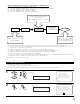
Select “Speaker Setup” at the System Setup Menu.
Display the Speaker Setup Menu screen.
1.Auto Setup/Room EQ
2.Speaker Setup
3.Audio Input Setup
4.Video Setup
5.Advanced Playback
6.Zone Setup
7.Option Setup
Exit
System Setup Menu
Speaker Setup
*System Setup
CH SEL
ENTER
(Main unit) (Remote control unit)
CH SEL
ENTER
(Main unit) (Remote control unit)
1.Speaker Config.
2.Subwoofer Setup
3.Delay Time
4.Channel Level
5.Crossover Frequency
6.Surround Sp Setup
7.THX Audio Setup
Exit
2.Speaker Setup
2
• If the “Auto Setup” procedure has already been performed, there is no need to make this setting.
• Perform this setting if you wish to make the settings for your speaker systems manually.
2-1. Setting the type of speakers
• The composition of the signals output to each channels and the frequency response are adjusted automatically according to the combination of
speakers actually being used.
1
CH SEL
ENTER
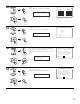
Select “Speaker Config.” at the Speaker Setup
Menu.
1.Speaker Config.
2.Subwoofer Setup
3.Delay Time
4.Channel Level
5.Crossover Frequency
6.Surround Sp Setup
7.THX Audio Setup
Exit
2.Speaker Setup
2
CH SEL
ENTER
Display the Speaker Config. screen.
(Main unit) (Remote control unit)
Speaker Config.
*Speaker Setup
(Main unit) (Remote control unit)
Speaker Config.
*Speaker Setup
Select “Exit” and press the ENTER button at the
Auto Setup / Room EQ Menu screen.
The System Setup Menu reappears.
1.Auto Setup
2.Room EQ Setup
3.Direct Mode Setup
4.Mic Input Select
5.Parameter Check
Exit
1.Auto Setup/Room EQ
Exit
*AutoSet/RoomEQ
14
(Main unit)
CH SEL
ENTER
(Remote control unit)
CH SEL
ENTER
(Main unit)
(Remote control unit)