
User's Manual

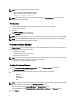
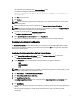
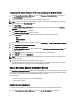
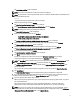

The comparison report is displayed on the Comparison Report screen.
If the media is unavailable the following error message appears:
Unable to recognize the media. It may be blank, damaged, or the format is
not supported.
4. Click OK and insert the media.
5. Click Continue.
NOTE: You can selectively upgrade components depending on your requirement. However, you cannot perform
selective downgrades.
6. Select any components that you want to upgrade and click Systems Build and Update Utility Home.
NOTE: SBUU saves the information about the repository and the selections you made on the Comparison Report
screen. These updates are applied during the actual deployment.
7. To update your current system, click Apply/Export Configuration.
The Configure Apply/Export Options screen is displayed.
8. Select Apply Configuration to Current System and click Apply/Export.
The progress bar is displayed after which your system reboots with the firmware updates configured.
Hardware Configuration Module
The Hardware Configuration module in SBUU enables you to configure your system’s BMC, DRAC, RAID, and BIOS.
Once you save the configuration settings, you can use the tool to generate the .ini file and apply these configuration
settings across multiple systems.
Configuring Your System Hardware On Your Current System
1. On the Systems Build and Update Utility Home screen, click Hardware Configuration on the left pane.
The Configuration Status Summary screen is displayed.
2. On the Component screen, click the individual component buttons to configure the components.
– RAID
– BMC/DRAC/iDRAC
– BIOS
NOTE: If you configure RAID manually and use SBUU to install an operating system on a master system, you need
to manually configure RAID on the target system as well.
3. Click Save Settings → Go Back to Configuration Summary.
4. Click Save Settings and Go Back to Home Page.
5. Click Apply/Export Configuration.
The Configure Apply/Export Options screen is displayed with the Apply Configuration to Current System option
selected, by default.
6. Click Apply/Export.
A progress bar is displayed indicating that the configuration changes you saved in step 3 are being applied to your
system.
After the changes are applied, your system reboots automatically and is ready for use with the updated
configuration.
7