
User's Manual


Table Of Contents
- About This Document
- Dell Systems Build and Update Utility Overview
- Before You Begin Using the Systems Build and Update Utility
- Launching the Systems Build and Update Utility
- Using the Systems Build and Update Utility
- Flexibility That the Systems Build and Update Utility Offers
- Using the Systems Build and Update Utility in Different Scenarios
- Updating Your System Firmware
- Configuring Your System Hardware
- Installing the Operating System
- Deploying Your Current ("Bare-Metal") Dell System
- Deploying More Than One System With the Same Configuration
- Deploying More Than One System With Slightly Different Configurations
- Deploying Multiple Systems of Different Models
- Deploying Multiple Systems With the Same Configuration for Different Operating Systems
- Reusing Configuration Files
- Important Information and Frequently Asked Questions
- Glossary
- Index
22 Launching the Systems Build and Update Utility
6
To boot the host system with the Systems Build and Update media, select
Power Cycle System
under
Power Control Operations
, and click
Apply
.
7
Click
Console
.
The
Console Redirection
screen appears.
8
Click
Connect
.
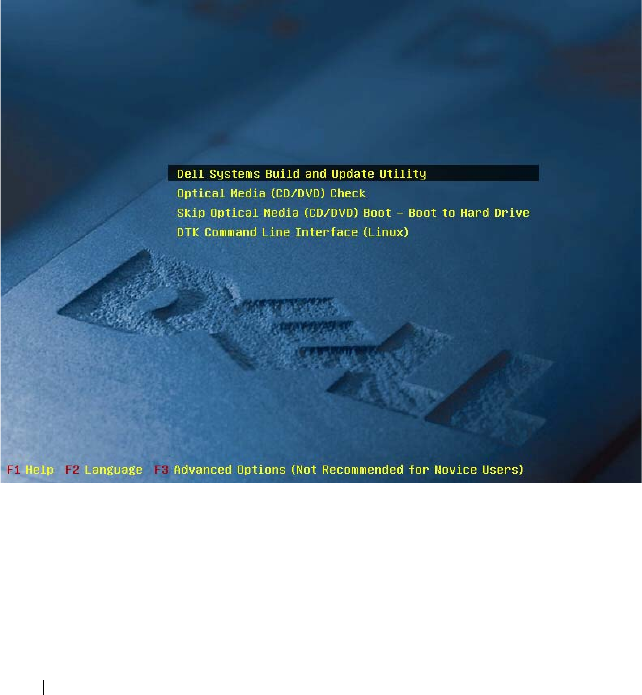
You can now access the boot menu screen on your host system from your
client system and proceed to use the Systems Build and Update Utility
remotely.
Figure 4-1. Boot Menu Screen