
Users Guide
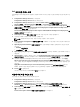
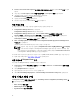
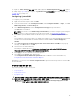
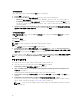

이 섹션에서는 Action Settings(작업 설정) 탭에 대해 설명합니다. Variable Replacement(변수 대체) 탭에 대
한
자세한 내용은 변수 대체를 참조하십시오. Logs/Return Files(로그/반환 파일) 탭에 대한 자세한 내용은 로
그/반환 파일을 참조하십시오.
Configuring System BIOS
To configure your system BIOS:
1. Right-click the task sequence and click Edit.
2. From the left hand side of the Task Sequence Editor, under Configure Hardware → Step 1 , click Set
BIOS Config (ini file) → Action Settings tab.
3. Select BIOS Config (ini file) from the Configuration action type: drop-down menu.
The View button is enabled.
NOTE: You can also select BIOS Config (command line) if you want configure system using the
CLI option. For more information on the CLI option usage, see Command Line Options.
4. Click View to open the ini file. Make modifications as per the configurations required and save the
file.
For information on the ini file format, see “Sample File Formats” in the Dell OpenManage Deployment
Toolkit Version 4.4 Command Line Interface Reference Guide available at dell.com/support/
manuals.
5. Select Save to a file in the toolkit package for this custom action when I click OK, in the pop-up
message, click OK, and then click OK.
6. Save the file in the default directory.
An example of default directory: \\<site server hostname>\sms_<site code>\OSD\lib\Packages
\Deployment\Dell\PowerEdge\DTK\Template\Configs\Syscfg.
7. Click Apply to save the edited file to the task sequence.
8. Select Set from the Action: drop-down menu.
The Configuration file/Command line parameters field is enabled. For more information see,
Configuration file/Command line Parameter Options.
Alternatively, you can select the <Create configuration file> option from the drop-down to create an ini
file from the start.
구성 파일/명령줄 매개 변수 옵션
다음 3가지 옵션 중에서 선택할 수 있습니다.
• <구성 파일 생성>
• <구성 파일 가져오기>
• <syscfg.ini> 편집
주의: 패키지에서 새 파일을 업데이트하거나 저장해도 모든 해당 배포 지점에서 자동으로 업데이트되지
않습니다. 필요한 시스템에서 새 파일을 사용할 수 있도록 하려면 Software Distribution(소프트웨어 배
포)→ Packages(패키지)→ Dell PowerEdge Deployment→ Dell PowerEdge Deployment ToolKit
Integration <버전> 노드에서 배포 지점을 업데이트해야 합니다.
13