
Users Guide




122 Installing Managed System Software on Supported Linux and VMware ESX
The following is an example of custom RPMs-based installation of Server
Administrator, including the installation of the Storage Management Service
components.
NOTE: On the Red Hat Enterprise Linux 5 operating system, DVDs are auto-mounted
with the -noexec mount option. This option does not allow you to run any executable
from the DVD. You need to manually mount the DVD and then run executables.
1
Log on as
root
to the system running the supported VMware ESX,
Red Hat Enterprise Linux, or SUSE Linux Enterprise Server operating
system where you want to install the managed system components.
2
Insert the
Dell Systems Management Tools and Documentation
DVD into
the DVD drive.
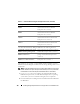
SYSMGMT/srvadmin/linux/custom/
RHEL4
Contains base Server Administrator with
command line interface for Red Hat
Enterprise Linux (version 4)
SYSMGMT/srvadmin/linux/custom/
RHEL5
Contains base Server Administrator with
command line interface for Red Hat
Enterprise Linux (version 5)
SYSMGMT/srvadmin/linux/custom/
SLES10
Contains base Server Administrator with
command line interface for SUSE Linux
Enterprise Server (version 10)
SYSMGMT/srvadmin/linux/custom/
SLES11
Contains base Server Administrator with
command line interface for SUSE Linux
Enterprise Server (version 11)
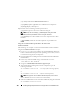
For example, If you are running Red Hat Enterprise Linux (version 4), you can
customize the installation by adding the RPMs from the following directories:
SYSMGMT/srvadmin/linux/custom/
RHEL4/add-StorageManagement
Storage Management component packages
for Red Hat Enterprise Linux (version 4)
SYSMGMT/srvadmin/linux/custom/
RHEL4/SA-WebServer
Server Administrator Web Server component
packages for Red Hat Enterprise Linux
(version 4)
SYSMGMT/srvadmin/linux/custom/
RHEL4/Server-Instrumentation
Server Instrumentation packages for Red Hat
Enterprise Linux (version 4)
Table 9-1. Custom Installation Using Pre-Configured Directories (continued)
Directory Details