
Users Guide

Share server inventory information with OpenManage
Enterprise by using OMM
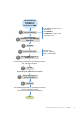
You can share server inventory information of all servers in OMM with OpenManage Enterprise console for discovery of servers.
Ensure that you add servers to the Inventory Tool page. For more information, see Add servers to the inventory page by using
OMM on page 54.
1. Tap
> Inventory Tool.
2. On the Inventory Tool page, tap Send > Send to OME > NEXT.
3. To save the server inventory information in a CSV file, tap Send > Export to CSV > NEXT.
Provide the encryption password and share the file by using any application available on your mobile. Use the file to import
the server credentials to OpenManage Enterprise console.
4. Select the OpenManage Enterprise console and tap SEND.
The servers are exported from OMM to OpenManage Enterprise.
Manage power operations on devices monitored by
OpenManage Consoles by using OMM
Ensure that the server and iDRAC are discovered to perform all the power operations.
For devices managed by OpenManage Consoles, the power-control operations are supported only on iDRAC and servers.
1. View device data by using OMM on page 17.
2. On the OpenManage Consoles dashboard, tap Devices.
3. Tap the appropriate device category (for example, RAC), and then tap to select the device.
The inventory information of the device is displayed.
4. Tap
> Reboot.
Options to power cycle, shut down the operating system, power on, or power off are displayed.
5. Select the power-control operation that you want to perform.
6. Tap Submit.
Manage OpenManage Consoles on OMM
19