
Solution Guide



82 Analyze
Analysis Using FTK
Open an Existing Case
Using the File Menu
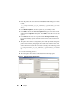
1
From within FTK, select
File
, and then select
Open Case
.
2
Highlight the case you want to open and click it to launch the case.
NOTE: All case files are named case.ftk. The case.ftk file for each case is stored in
the applicable case folder.
From the Command Line
At the command line type:
path_to_ftk_program_file\ftk.exe /OpenCase
target_case_directory
Processing Case Evidence
FTK processes evidence as a case is created or as evidence is later added to the
case. For instructions on creating a new case, see "Create a Case" on page 59 or
refer to the FTK User’s Guide. For instructions on adding evidence to an
existing case, see "Add Evidence to a Case" on page 60 or refer to the FTK
User’s Guide.
See "Related Documentation and Resources" on page 16 for more
information.
Analysis Using EnCase
Open an Existing Case
1
From the file menu, select
File
→
Open
.
2
Browse to the case and click
Open
.