
Solution Guide


56 Ingest
NOTE: The 7-Pin DIN plug on the TP3 Power Supply will not work with the Tableau
bridges. You must use the included 7-pin DIN to 5-pin DIN TCA-P7-P5 adapter cable
to connect the TP3 power supply to the Tableau bridges.
3
Connect the power cable to the TP2 power source and also into an electrical
socket.
4
Turn the power on to verify that the
write block
LED is
ON
; then turn the
power to the bridge
OFF
before connecting to the target hard drive.
5
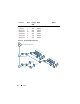
Connect one female Molex connector of the TC2-8 Molex-style Power cable
to the DC OUT located on the right side of the T35es SATA/IDE bridge.
6
Connect the other female Molex connector of the TC2-8 Molex-style power
cable to the suspect hard drive's Molex connector.
7
Connect the blue end of the TC6-8 IDE Signal Cable (so as to align pin 1) to
the T35es SATA/IDE bridge.
8
Connect the black end of the TC6-8 IDE Signal Cable to the target storage
device.
9
Plug one end of the data cable (USB 2.0, two FireWire 800 connections,
Orion 4-pin FireWire 400 connection) to one of the ports on the left side of
the T35es SATA bridge.
10
Plug the other end of the data cable to a port on the Dell ruggedized laptop or
Dell OptiPlex workstation.
11
Flip the switch on the top of the T35es SATA/IDE bridge to the
A On
position. The Dell ruggedized laptop or Dell OptiPlex workstation should
recognize the presence of the target storage device.
Ingest Using FTK 1.8 and 3.0 Datacenter-enabled
In the Dell Digital Forensics Solution, licensing for FTK is accomplished using
a network licensing system. Typically, the FTK Network Licensing Server is
installed on one of the datacenter servers, and an FTK dongle containing
multiple user licenses is plugged into that server. The FTK clients are
configured to look to that server for licensing, and no local dongles are required.
See the Dell Digital Forensics Installation and Configuration Guide for further
information.
See "Related Documentation and Resources" on page 16.
Also, see
your network systems administrator for information specific to your agency’s
Solution installation.