
Solution Guide


Triage 35
9
Remove the SPEKTOR boot disk from the optical drive, unplug the Collector
from the target computer’s USB port, and plug it into an available USB port
on the Dell ruggedized laptop.
Deploy a Collector for Standard Acquisition Against a Target Storage Device
1
Plug the target storage device into either the read-only USB port or the
firewire port of the Dell ruggedized laptop.
2
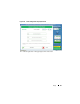
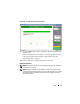
Tap or click
Deploy Collector
.
3
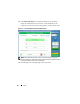
Tap or click
Target Storage Device
, enter the required information, then tap
or click
Collect from Device
.
4
When the collection has completed, unplug the target storage device from the
USB port and tap or click
OK
.
Deploy a Collector for Live Acquisition
NOTE: Ensure that you keep accurate and detailed notes during this procedure as
part of chain-of-custody best practices.
NOTE: You do not need the SPEKTOR Boot Disk to accomplish a live acquisition
deployment.
1
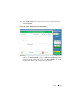
Click
Deploy Collector
→
Target Computer
.
2
On the target device, navigate to
My Computer
(or
Computer
on those
computers operating under Windows Vista or Windows 7).
3
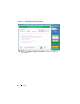
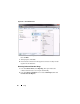
Double-click
Collector
icon appears when it appears to view the contents of
the Collector.
Figure 2-19. Collector Icon
4
Click the folder named with the highest number. Only one folder will appear
if this is your first deployment since cleaning this Collector.
5
Right-click
spektor-live.exe
, then select
Run as administrator
in the drop-
down box. If a message appears asking you to grant permission for the
application to run as administrator, click
Continue
.