
Solution Guide


34 Triage
Deploy a Collector for Standard Acquisition Against a Target Computer
WARNING: You must change the system boot order from within the target
computer’s system BIOS before attempting a standard acquisition. If the target
computer is set to boot from its hard drive instead of from the optical drive with the
SPEKTOR boot disk in place, the target computer’s drive contents will be altered.
Ensure that you know how to access the target computer system BIOS before
powering up the target computer.
WARNING: Before powering up the target computer, ensure that you have
placed the SPEKTOR boot disk in the optical drive to which the target computer is
set to boot. Failure to boot up the target computer without the boot disk in place
will result in the alteration of the target computer’s drive contents.
NOTE: You must have a SPEKTOR boot disk to accomplish a standard acquisition
deployment against a target computer. See "Burn a Boot CD for Standard
Acquisition Procedures" on page 21 for further information on creating a boot disk.
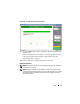
1
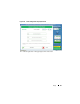
On the Dell ruggedized laptop, tap or click
Deploy Collector.
2
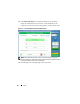
Select
Target Computer.
3
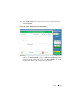
Click
OK
, then unplug the Collector from the Dell ruggedized laptop.
4
Plug in the Collector to an available USB port on the target computer.
NOTE: Dell recommends that you always use the target computer’s internal optical
drive with the boot disk. If this is not possible, use an external optical drive with a
USB connector.
5
Place the SPEKTOR boot disk in the optical drive.
6
Access the target computer’s system BIOS program and change the boot
order so that the target computer will boot from the optical drive.
The SPEKTOR boot disk will load, and the boot drive interface will display.
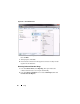
7
Enter the information requested on the screen, pressing <Enter> or the arrow
keys to move between fields, then move to the
COLLECT
field and press
<Enter> to begin data collection.
CAUTION: Do not remove the SPEKTOR boot disk from the optical drive until the
target computer has shut down completely.
8
When the collection process is complete, press <Enter> to shut down the
target computer.