
User manual




Tasks and Kits
3-20 ProMaster 2500 User Manual
Logging Programming
Statistics
Use the
Session Data Logging...
feature to automatically record statistics
for each Task run in a file with a
file_name.log
extension. From the
TaskLink main screen, press
Alt
and
S
to select the
Setup
pull-down
menu. Highlight
Session Data Logging...
and press
↵
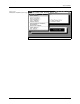
. Figure 3-13 shows
the relationship between the Task Statistics screen (that appears by
default at the end of each Task) and the Session data logging file.
General Parameters
Most Tasks are run using the default values defined in this box. The
parameters that might be changed for operation with the 2500 are
described below. Other parameters displayed are intended to be used
with other products supported by TaskLink. Information on these
commands is available by pressing
F1
to invoke TaskLink’s online Help.
Only the commands used with the 2500 are described below.
Verify Passes
—Device manufacturers specify the high and low V
CC
voltage at which their devices will operate and output accurate data. The
2500 defaults to
two verify passes.
The device’s V
CC
pin is set to the
specification’s high V
CC
and the 2500 verifies that all bits in the device
compare with the RAM data. If this test passes, the 2500 sets V
CC
to the
low value and verifies each fuse in the device a second time. Selecting
One
directs the 2500 to test the device once using the nominal V
CC
level (+5V).
Custom Commands
— This is an optional CRC command field to control
the programming electronics with some special command that is not
supported by TaskLink. Refer to the Programming Electronics Computer
Figure 3-13
Log File Format Compared to Task
Statistics Screen
-
07-02-1993 17:12
?
LOGIC TASK
16v8.jed
0000B45C
LATTICE 16V8/A/BPLCC
CONT/IBC/PROG/TEST
73,0,1,1,0,0,0,0,0,0,0,0,1,1,0
?,?
Record Separator
Date & Time
Optional Session I.D. Name
Task Name
Data Source (Filename)
Programming Data Sumcheck
Device Type
Selected Process
Programming Results
First & Last Serial Numbers
filename.log
1959-1
(Insert Task Statistics Screen
and add leader line)