
User manual



Tasks and Kits
ProMaster 2500 User Manual 3-5
Use the arrow keys (or press
A
) to highlight the
Add Task
option, and
press
↵
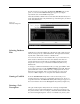
to select it. The
Add Task
dialog box appears (see Figure
3-3) with the cursor in the
Name
entry field.
The Tasks and Kits available in the current Task/Kit database file (shown
in the Task/Kit Database entry field at the top of the dialog box) are listed
in the Task/Kit list box.
Selecting Database
Files
TaskLink stores all Tasks and Kits in a database file with a
.tsk
extension.
The file can be given any valid DOS filename. Throughout this manual,
any file with a
.tsk
extension refers to a database file.
You can create as many or as few database files as you want. However,
all the Tasks in a Kit must be from the same database file. Kits are a
special application for Tasks and are described in detail later in this
chapter. You can have up to a maximum of 2500 Tasks/Kits in any
database file.
To change to a different Task database file (
xxxx
.tsk), press
S
HIFT
+
T
AB
to move the screen cursor to the
Task/Kit Database
entry field. Enter the
path and filename of the new database file, or display the file selection
dialog box by pressing
F2
. After you select the file, move the screen
cursor to
< OK >
and press
↵
to accept the new database filename.
Naming a Task/Kit
From the
Task/Kit Name
field, enter a name for the Task you are
creating. This name can be up to 25 printable characters long. Press
↵
to
accept the Task name. The
Edit Task “
Task_name
”
dialog box appears on
the screen with the cursor in the
Description
entry field (see Figure 3-4).
Entering a Task
Description
This optional description field, which can contain up to 40 printable
characters, appears in the Task/Kit list box. Operators can refer to it as
they select a Task to run. For example, a Task named 701-2657-009 could
have the following description: “Device A on Board C for
product_name.
”
Figure 3-3
Add Task Dialog Box