
User manual




Local Mode
F-4 ProMaster 2500 User Manual
Type Size
After you have selected an existing device or entered a valid length for
your custom device, the 2500 displays:
Select the font you want and press
ENTER
.
The 2500 displays:
Device Orientation in
Input Tube
Move the pin 1 icon (using the arrow keys) to match the position of pin 1
on the device in the input tube. We recommend these settings.
1. For square PLCC devices, orient pin 1 toward the back of the 2500.
2. For 32-pin PLCCs, all DIP, and all SOIC devices, orient pin 1 to the
right (assuming you are standing in front of the 2500).
Note: Make sure the device orientation is the same in the display and in the
input track. If the orientation is not the same, during operation the device
may be inserted incorrectly into the programming module, possibly
damaging the device or programming module.
Press
ENTER
when your selections are completed.
Text Rotation
The 2500 displays:
Select a text rotation and press
ENTER
. We recommend the following
selections:
Orientation in
Receiving Tube
The next display prompts you to select the position of pin 1 as the device
moves into the receiving tube. The 2500 displays:
Use the arrow keys to move the pin 1 icon to match its position on the
device as it enters the receiving tube. Press
ENTER
when you are
satisfied with your selection.
Tip: So that you can place devices back in the 2500 without repositioning them,
choose a setting that places the devices in the receiving tube opposite their
orientation in the input tube.
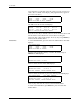
PRINT LABEL TEMPORARY FILE
AUTO-SEL 26 CPI 26 CPI S 20 CPI
16 CPI T 12 CPI T 18 CPI
MOVE TO SELECTION THEN PRESS ENTER
1 <------- TEMPORARY FILE
SELECT POSITION OF PIN 1
AS IT COMES OUT OF THE TUBE.
USE ARROW KEYS THEN PRESS ENTER.
1 TEMPORARY FILE
SELECT POSITION OF PIN 1
TXT IN RELATION TO THE TEXT.
USE ARROW KEYS THEN PRESS ENTER.
<------- TEMPORARY FILE
SELECT POSITION OF PIN 1
AS IT WILL GO INTO THE TUBE.
1 USE ARROW KEYS THEN PRESS ENTER.