
User manual





Introduction
1-16 3/97 ProMaster 2500 User Manual
The table below summarizes the keys commonly used with TaskLink and
the function they serve.
Note: Press the ESC key at any time to exit any menu or dialog box without
saving and to display an Exit TaskLink confirmation window.
User Interface Options TaskLink Screen
—System operators will use TaskLink for most of their
communication with the system. Most operator prompts are displayed in
the TaskLink screens on the PC monitor.
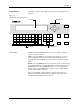
Front Panel
—The 2500’s keyboard and display will be used by the
system operator on limited occasions to:
• Adjust specific handler parameters using special function key
commands (refer to Appendix B for Firmware key commands).
• Align the beam to the programming module.
• Read device handling messages.
PC Key(s) Description of Action
T
AB
Moves the cursor to the
next field
(forward) in a dialog
box.
S
HIFT
+
T
AB
Moves the cursor to the
previous field
(backward) in a
dialog box.
↵
Accepts
the current
selections
in a dialog box. In a
multiple-line text entry field, this key moves the cursor
to the next line or the beginning of the next field.
E
SC
Cancels
a dialog box
without saving
any changes, or it
cancels any operation in progress.
Arrows
Moves the cursor between selections in a dialog box.
H
OME
, E
ND
Moves the cursor to the
beginning
or
end
of a list.
P
G
U
P
,
P
G
D
N
Moves the cursor
up one screen
or down one screen.
F1
Accesses context-sensitive
help
.
F2 Accesses lists
from several dialog box entry fields. You
are prompted to press this key at appropriate times by
the TaskLink message line in the lower left corner of the
screen.
C
TRL
+
F1
Checks communication between TaskLink and the
Programmer port
on the 2500 (enter command from
TaskLink’s main screen).
C
TRL
+
F2
Checks communication between TaskLink and the
Remote port
on the 2500 (enter command from
TaskLink’s main screen).