
User manual





Introduction
ProMaster 2500 User Manual 3/97 1-15
Push Buttons
—Dialog boxes contain one or more push buttons. To select
a push button, highlight it and press
↵
, or select it using a mouse.
<OK>
and
<Cancel>
are examples of push buttons.
Check Boxes [ X ]
—Check boxes toggle an option on and off. Use the
S
PACE
bar, or click on the check box with your mouse to toggle a selection
on and off.
Electronic ID
is an example of a check box.
Radio Buttons
(
•
)—Radio buttons are used to select an option from a
list of mutually exclusive options. Use the arrow keys or click on the
option to select a radio button option. The two options listed under
Verify Passes
are examples of radio buttons; selecting one deselects the
other.
Parameter Entry Fields
—These fields allow you to input information
that TaskLink needs. When highlighted, text entered at the keyboard goes
into the entry field.
Custom commands
is an example of a parameter
entry field.
Online Help
For more detailed information on any aspect of TaskLink, context-
sensitive online help documentation is available by:
• Clicking the mouse button on the
< F1 = Help >
push button at the
bottom right of the screen.
• Moving the cursor to a selection and pressing
F1
.
All topics covered in online documentation are also accessible from the
General Help Index
in the
Help
menu.
TaskLink Screen
Movement Summary
Both the mouse and the PC keyboard can be used to select items from the
TaskLink menus. All screen movement and selection instructions in this
manual are given using the PC keyboard commands. If you are using a
mouse, simply point the mouse to an item on TaskLink’s action bar,
boxes, or buttons, and select the item by clicking the mouse button.
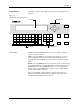
Figure 1-10
TaskLink General Parameters
Dialog Box