
User manual





Introduction
1-14 3/97 ProMaster 2500 User Manual
How to Use
TaskLink Screens
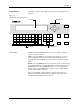
Figure 1-9 shows the TaskLink main screen for the system administrator.
The
Options
pull-down menu has been selected.
When you first enter TaskLink, the message line prompts you to press the
A
LT
key on your PC keyboard. This highlights the
Setup
selection and a
single letter on the other menu bar options. Press
↵
to select
Setup
or
press the highlighted letter key for any displayed option you wish to
select. For example, to select the
Options
pull-down menu as shown in
Figure 1-9, press
A
LT
+
O
.
Select the
Handler Type...
option by doing one of the following:
•Press
H
on the keyboard.
•Use the
↓
to move the cursor bar to that selection and then press
↵
.
• Move the mouse cursor to that selection and press the mouse’s select
button.
When you move the cursor to a new entry field on the TaskLink screen,
the message line in the lower left corner changes to explain the options
and prompts you for the required action.
The three trailing dots (ellipsis) that you see on most lines indicate that
you will need to make another choice on the next screen before TaskLink
will have enough information to execute the operation. In the example
above, select the handler system and then press
↵
.
Types of Screen Selections
There are several types of screen selections you will make in TaskLink. If
you select
Setup
from the main screen and then press
G
to access the
General Parameters
dialog box, the following selection options would be
displayed (see Figure ).
Dialog Boxes
—A dialog box allows you to select or set different
parameters. They can contain push buttons, check boxes, radio buttons,
and entry fields. This
General Parameters
screen is an example of a
dialog box. Use
T
AB
to move between the selection groups.
Figure 1-9
TaskLink Main Screen: Options
Pull-Down Menu Selected