
User manual





Preventive Maintenance
5-22 ProMaster 2500 User Manual
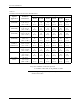
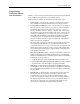
Faulty Printing
Printing Is Too Light
The ribbon is worn or broken, the print head is worn, or the print head
gap is too great.
Replace ribbon, or print head.
Adjust the print head gap (see page 5-24).
Characters Too Close
Together
Labels are loaded incorrectly, the rollers are dirty, or the motor or drive
circuitry is not operating properly.
Load the labels correctly, clean the rollers, and make sure the pinch
rollers are engaged (see page 2-9).
Check the label advance motor; run motor diagnostics.
Print Is Erratic or Slanting
Print head gap is too great, or the label drive is slipping.
Check and adjust the print head gap (see page 5-24), or clean the label
rollers.
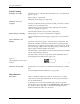
Dots in Characters Are
Missing
The cables may not be properly connected or they may be faulty. The
print head or handler controller board may not be operating properly.
The labeler power supply may not be at the correct voltage level. Check
the power supply voltage switch. If problem persists, contact Data I/O
Support (phone numbers listed in the Preface).
Check the LEDs on the handler controller board and evaluate the labeler
operation by running the print test.
Check the cable connections. Swap cables and see if different dots are
missing. Replace the print head (see page 7-13).
Characters Are Cut Off
If characters are cut off on the top and bottom of the label, try a smaller
font.
Check and adjust the label calibration (see page 5-25).
Miscellaneous
Beam Stalls
There is a problem with the motor driver, encoder, fuses, or wiring.
Lead screws need cleaning and lubrication. Also, inspect the shaft for
wear from bad bearings.
If cleaning does not correct the problem, reduce the motor speed to
increase the motor torque. Refer to the
LOWER CASE
+
M
command in
the “Firmware Keys” Appendix. Contact Data I/O Support (phone
numbers listed in the Preface) for assistance.
Figure 5-5
Missing Character Dots in Label
Printout
1591-1