
User manual







Operation
4-24 ProMaster 2500 User Manual
Selecting a Task
To select a Task from the list presented on the screen, press
T
AB
to move
the cursor to the
Task/Kit
list box. Use the
↑
+
↓
to highlight a specific
Task name. Press
↵
to start that Task.
Selecting a Database
File
If the Task you are looking for is not displayed, it may be located in a
different Task database file. To select a different Task/Kit database file,
highlight the
Task/Kit Database
entry line and press
F2
.
Select the path and filename of the Task/Kit database file you want in the
Filename
entry field, or select it from the
Dirs/Drives
and
Files
list boxes.
Press
↵
, or select
<OK>
to accept the new database filename.
Now select the Task you want to run from the list as described above.
Select Process
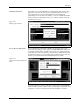
A list of processes may appear depending on how the Task was written.
A process is a list of operations that will be performed on the devices in
the Task. If a list of processes appears, you must make a choice similar to
the one in Figure 4-19. Check the instructions you have been given to help
you decide which process to select. In this example, the only difference
between these two processes is that one does not call for labeling the
device.
Select the desired process and press
↵
.
Other Prompts
Other prompts, such as those described below, may appear depending on
the types of devices listed in the Task. Then the action status box appears
showing what percentage of the data has been loaded.
Selecting a Device
A Task-specific device list may appear asking you to select from several
device IC manufacturers. Check the tubes of devices you will be running
and select the appropriate manufacturer and device type from the screen.
Use the
↑
and
↓
keys to move the screen cursor between devices. Press
↵
to select the device and continue running the Task.
Figure 4-19
Choosing a Process From Those
Presented on the Screen