
User manual


Tasks and Kits
3-32 ProMaster 2500 User Manual
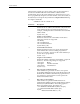
Set Preferences...
This set of check boxes allows you to configure some of TaskLink’s
optional system prompts and operating preferences. Press
F1
to invoke
TaskLink’s online Help for more information on the choices presented.
Two of the options that are particularly useful with the ProMaster 2500
are described in the following sections.
Purge ProMaster After
Processing
This option directs the 2500 to remove all devices from the track sections,
moving them to an output tube. The operator does not have to manually
remove devices from the tracks and load them, observing correct polarity,
into tubes.
TaskLink displays a purge dialog box when:
• Devices are in the track at the end of a Task or programming session.
• A Task has been terminated by the operator.
• The next Task in a Kit uses a different device type.
The
Purge...
dialog box prompts the operator to choose
<OK>
to start
purging parts from the system. If
<CANCEL>
is selected, any parts in the
tracks must be removed by the operator.
Remove the input tube if it has any devices and make sure that at least
one empty output tube is installed before selecting
<OK>
. TaskLink will
send all devices detected in the input track through the 2500 before it
completes the purge operation.
Enable Programmer
Disk
TaskLink (V1.4 or higher) will create and load your data files on either the
2500’s floppy drive or the MSM. To see the new commands displayed on
the TaskLink menus, you must select the
Enable Programmer Disk
Options
from the
Set Preferences
dialog box.
Figure 3-21
Configuring Operating
Preferences