
User manual


Tasks and Kits
ProMaster 2500 User Manual 3-29
Options Pull-down
Menu
Many of the commands and options displayed on this menu are intended
to be used with other products supported by TaskLink. To get
information on these commands in TaskLink’s online Help, press
F1
.
Only the commands used with the 2500 are described below.
Programmer Type and
Handler Type
Selecting 2500 Text or Graphics automatically selects Handler type. Select
2500 Text when your 2500 has an impact (dot matrix) printer installed.
Select 2500 Graphics when a thermal printer is installed.
Handler Sorting
This screen allows you to direct devices to output categories based on the
result of the programming operation. The 2500 has two output tubes. The
default configuration directs all Category 1 devices (those that have
Passed
programming) into output tube 1 (the right output tube as you are
facing the machine). All devices that fail the program or verify operations
(category 2) are placed in output tube 2.
You may change the routing of devices by changing either its category
from this dialog box or by changing the binning assignments on the
2500’s front panel display. Refer to the System Setup/Handler Setup
Menus to reassign the devices to different output tubes.
Error Limit
When you enter a value other than 0 (zero) in this field, TaskLink will
stop when you get the prescribed number of consecutive programming
errors. For example, if you set the value to 3, any programming error that
occurs on three consecutive devices stops TaskLink, and a failure
message is written on the screen. TaskLink will not stop if the 2500
detects two programming errors and one continuity failure, since they are
not the same. Setting the value to 0 (the default) turns off this feature, and
TaskLink will not stop even if all devices fail with the same error.
ProMaster Retries...
If you experience an error during programming, this parameter instructs
the 2500 to lift the device out of the programming block, insert it again,
and attempt a second device programming operation.
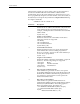
Figure 3-18
Commands Available from the
Options Pull-down Menu