
User`s manual



74 • Operational Reference Genie HM Series-GigE Vision Camera
Network Controls & GigE Vision Parameters
This section describes how to optimize the network configuration for maximum Genie bandwidth. Optimization of
these parameters is highly dependent on the number of cameras connected to a NIC, the data rate of each camera
and the trigger modes used.
Important: Laptop computers may have issues even with a GigE NIC port, either built in or as a PCMCIA
device. This section describes optimizations for both desktop and laptop computers, but laptops may require
additional customization as described in section "
Older Laptop Computer Networking Issues" on page 144.
CamExpert GigE Vision Parameters
Genie GigE Vision parameters can be manually modified directly from CamExpert as described below. Note that a
few parameters (IP Configuration Mode, IP Address, and Packet Size), can also be modified by the DALSA
Network Configuration Tool described in the next section of this manual.
The Automatic Network Configuration mode sets parameters to a default state. The Optimize mode sets the packet
size to the maximum value as reported by the NIC driver. If this does not provide satisfactory performance, it is
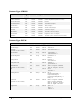
possible to optimize transfers by manually setting the network configuration parameters. The following screen shot
of the GigE Vision Parameters shows the CamExpert control set to Manual. Descriptions for each parameter
follow.