
User`s manual





102 • Network Overview & Tools Genie HM Series-GigE Vision Camera
configured for LLA mode.
To recover a GigE Vision camera:
• Start the Network Configuration program from the windows start menu: Start•Programs•DALSA•Network
Interface•DALSA Network Configuration Tool.
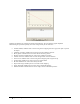
• From the menu bar click on Advanced and then on Recover Camera.
• On the dialog enter the camera MAC address and click the Recover Camera button.
Camera Recovery Dialog
• If the camera requires a persistent IP address, select the bullet to assign a persistent IP immediately with
recovery. Enter the new IP address and click on Recover Camera.
Important when using DALSA Genie cameras: Any changes made with this tool will update the Genie flash
memory. Do not remove power from the Genie camera for a minimum 10 seconds.
Creating a Status Report
Before contacting DALSA technical support, the user should review the Troubleshooting section of this manual
(see "
Troubleshooting" on page 131). Most installation, configuration, and imaging issues are documented along
with their solutions.
To aid technical support, the DALSA Network Configuration tool can save a network configuration report. From
the File menu select Save current status. You will be prompted for a filename for the report text file. This file
should always be sent with any request for technical support.