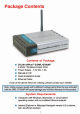
TM D-Link AirPlus G DWL-G700AP 2.
Contents Package Contents ................................................................................3 Introduction............................................................................................4 Wireless Basics ....................................................................................6 Getting Started ......................................................................................8 Using the Configuration Utility ............................................................
Introduction At up to five times the speed of previous wireless devices (up to 54Mbps), you can work faster and more efficiently, increasing productivity. With the DWL-G700AP, bandwidthintensive applications like graphics or multimedia will benefit significantly because large files are able to move across the network quickly. The D-Link AirPlusTM G DWL-G700AP Wireless Access Point is an 802.11g highperformance, wireless device that is also compatible with 802.11b devices.
Features and Benefits Up to 5X Faster with AirPlus G Products - high-speed wireless data transfer rates up to 54Mbps. With increased data rate and capacity, the DWL-G700AP delivers media rich content such as digital images, videos, and MP3 files much faster than standard 802.11b networks. Fully 802.11b Compatible – Fully compatible with the IEEE 802.11b standard and interoperable with all existing 802.11b compliant devices.
Wireless Basics D-Link wireless products are based on industry standards to provide easy-to-use and compatible high-speed wireless connectivity within your home, business or public access wireless networks. D-Link wireless products will allow you access to the data you want, when and where you want it. You will be able to enjoy the freedom that wireless networking brings. A Wireless Local Area Network (WLAN) is a computer network that transmits and receives data with radio signals instead of wires.
Wireless Basics (continued) Installation Considerations Keep in mind, that the number, thickness and location of walls, ceilings, or other objects that the wireless signals must pass through, may limit the range. Typical ranges vary depending on the types of materials and background RF (radio frequency) noise in your home or business.
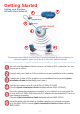
Getting Started Setting up a Wireless Infrastructure Network 1 2 3 DWL-G700AP 4 6 5 Please remember that D-Link AirPlus G wireless devices are pre-configured to connect together, right out of the box, with their default settings.
Using the Configuration Utility If you wish to change the default settings or optimize the performance of the DWL-G700AP, D-Link has included a configuration utility for this purpose. After you have completed the initial installation and the Setup Wizard (as illustrated in the Quick Installation Guide that is included with the DWL-G700AP), you can access the configuration menu, at any time, by opening the web-browser and typing in the IP address of the DWL-G700AP.
Using the Configuration Utility (continued) Home > Wireless Hexadecimal digits consist of the numbers 0-9 and the letters A-F ASCII (American Standard Code for Information Interchange) is a code for representing English letters as numbers from 0127 SSID: (Service Set Identifier) Default is the default setting. The SSID is a unique name that identifies a network. All devices on a network must share the same SSID name in order to communicate on the network.
Using the Configuration Utility (continued) Home > LAN Dynamic IP Address: Select this option if you would like to have an IP Address automatically assigned to the DWL-G700AP by a DHCP server in your network. DHCP stands for Dynamic Host Configuration Protocol. It is a protocol for assigning dynamic IP addresses “automatically.” With a DHCP Server there is no need to manually assign an IP Address. Static IP Address: Select this option if you are manually assigning an IP Address. IP Address: 192.168.0.
Using the Configuration Utility (continued) Home > DHCP DHCP Server: Select Enabled or Disabled. Disabled is the default setting. If you want to use the DWL-G700AP as a DHCP server, to automatically assign dynamic IP addresses on the network, you will select Enabled. Starting IP Address: If you have enabled the DHCP server function, enter the starting point of the IP address range for your network.
Using the Configuration Utility (continued) Advanced > Performance Beacon Interval: Beacons are packets sent by an access point to synchronize a wireless network. Specify a beacon interval value. Default (100) is recommended. RTS Threshold: This value should remain at its default setting of 2,432. If you encounter inconsistent data flow, only minor modifications to the value range between 256 and 2,432 are recommended. Fragmentation: This value should remain at its default setting of 2,346.
Using the Configuration Utility (continued) Advanced > Filters DWL-G700AP Use MAC Filters to allow or deny wireless clients, by their MAC addresses, from accessing the DWL-G700AP. You can manually add a MAC address or select the MAC address from the list of clients that are currently connected to the router (Connected PCs). The default setting is Disabled MAC Filters. MAC Filter List: This list will display the MAC addresses that are in the selected filter.
Using the Configuration Utility (continued) Tools > Admin New Password: Enter the new password. Confirm Password: Re-enter the password to confirm it. Tools > System Save Settings: The current system settings can be saved as a file onto the local hard drive. Load Settings: The saved file or any other saved setting file can be loaded back on the access point. To reload a system settings file, click on Browse to browse the local hard drive and locate the system file to be used.
Using the Configuration Utility (continued) Tools > Firmware You can upgrade the firmware of the DWL-G700AP at this page. When you click Click here to check... in this window you will be connnected to D-Link’s website, where you can download the latest firmware update. After you have completed the firmware download to your hard drive, click Browse to browse your local hard drive and locate the firmware to be used for the update. Click Apply.
Using the Configuration Utility (continued) Status > Log View Log The DWL-G700AP keeps a running log of events and activities occurring on the AP. If the device is rebooted, the logs are automatically cleared. You may save the log files under Log Setting. First Page - The first page of the log. Last Page - The last page of the log. Previous - Moves back one log page. Next - Moves forward one log page. Clear - Clears the logs completely. Log Settings - Brings up the page to configure the logs.
Using the Configuration Utility (continued) Status> Stats Traffic Statistics The DWL-G700AP keeps statistics of traffic that passes through it. You are able to view the amount of packets that pass through the Ethernet and wireless portions of the network. The traffic counter will reset if the device is rebooted. DWL-700AP Status > Wireless Connected Wireless PCs List This list displays the MAC Addresses of connected PCs and the length of time that they have been connected.
Networking Basics Using the Network Setup Wizard in Windows XP In this section you will learn how to establish a network at home or work, using Microsoft Windows XP. Note: Please refer to websites such as http://www.homenethelp.com and http://www.microsoft.com/windows2000 for information about networking computers using Windows 2000, Me or 98SE. Go to Start>Control Panel>Network Connections Select Set up a home or small office network When this screen appears, click Next.
Networking Basics (continued) Please follow all the instructions in this window: Click Next. In the following window, select the best description of your computer. If your computer connects to the internet through a gateway/router, select the second option as shown. Click Next.