
Operation Manual


233
Creating Discs
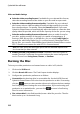
Burn to disc: ensure this option is selected if you want your production
burned to a disc.
Number of copies: in the field provided, enter the number of discs you want
CyberLink PowerDirector to burn for you in succession.
Create a folder: select this option to create a disc folder on your computer
that contains all the files necessary for burning. Click on to specify the
folder where it is created. Creating a folder overwrites all of the existing data
in a directory.
Enable x.v.Color: x.v.Color is a color system that can display a wider color
range than usual. CyberLink PowerDirector can generate an x.v.Color-
compliant stream, which is backward compatible with RGB displays, while
offering the opportunity to achieve better visual quality if your playback
environment is x.v.Color ready.
Enable hardware video encoder: enable this option to speed up rendering
and burning time. This option is only enabled if your computer supports
hardware acceleration (NVIDIA graphics card that supports CUDA, an AMD
graphics card that supports AMD Accelerated Parallel Processing, or a
computer with Intel Core Processor Family technology).
4. When ready, click the Start Burning button to burn your production to disc.
Note: the burning process may take a few minutes, depending on the length and
quality of your video, and your computer's processing power. Be prepared for a
short wait while CyberLink PowerDirector renders your movie and burns it to the
disc. Time remaining does not include the time it takes to finalize/close discs.
Burning a Disc in 3D
If you created a 3D* video production, click on the 3D Disc tab to configure your
disc's preferences and burn it to disc.
Note: * optional feature in CyberLink PowerDirector. Check the version table on
our web site for detailed versioning information.
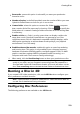
Configuring Disc Preferences
The following preferences are available on the 3D Disc tab: