User’s Guide Creative WebCam Notebook Information in this document is subject to change without notice and does not represent a commitment on the part of Creative Technology Ltd. No part of this manual may be reproduced or transmitted in any form or by any means, electronic or mechanical, including photocopying and recording, for any purpose without the written permission of Creative Technology Ltd.
Contents
Contents Introduction Before You Begin ................................................................................................................. i Package Contents ......................................................................................................... i README file ............................................................................................................... i Minimum System Requirements ..............................................................................
A Technical Specifications B Troubleshooting Problems Using Creative WebCam Notebook ................................................................ B-1 Problems in Windows XP ................................................................................................
Introduction
Introduction Creative WebCam Notebook is a 24 bit, 16.7 million color digital video camera kit for your notebook, giving you everything you need to capture still images and full color video. Not only that, it also allows you to communicate face-to-face with others on the Internet! Applications included on your Installation CD may vary depending on camera model and region of purchase.
❑ CD-ROM drive installed ❑ Sound Blaster® or other Windows-compatible audio card. Sound Blaster 16 or higher required for simultaneous two-way conversation with full-duplex support. For Videoconferencing ❑ Microphone ❑ Modem or LAN access to the Internet at 28.8Kb or faster Document Conventions Tip. This tells you about short cuts or hints relating to a feature. Note. This highlights additional or important information about a feature. Caution! This highlights proper usage of your product.
1 Installing Creative WebCam Notebook
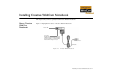
Installing Creative WebCam Notebook This chapter tells you how to quickly install Creative WebCam Notebook. About Creative WebCam Notebook Figure 1-1 highlights the features of Creative WebCam Notebook. Power LED Focus ring To adjust the view focus, point the lens toward your subject and then rotate this ring in a clockwise or counterclockwise motion until the image is in focus.
Installing Creative WebCam Notebook Follow the installation procedures for your operating system. In Windows 98 / 98SE / Me / 2000 / XP 1. Do not connect Creative WebCam Notebook to your notebook before installing the drivers. If you accidentally begin installation with Creative WebCam Notebook connected, the Add New Hardware Wizard or Found New Hardware Wizard dialog box appears. Click the Cancel button. 2. Insert the Creative WebCam Notebook CD into your CD-ROM drive.
6. Clip Creative WebCam Notebook on top of your notebook screen (Figure 1-3). Follow the steps below that are for your operating system. For Windows 98/98SE and Windows Me only After connecting your camera, Windows automatically detects the device. i. If you are prompted to insert the Windows 98 CD, replace the Creative WebCam Notebook CD with the appropriate CD. Note: Windows 98 is available in various editions. Be sure to use the correct edition for your system. ii.
For Windows 2000 only 9. When a Digital Signature Not Found dialog box appears (Figure 1-4), telling you that Creative WebCam Notebook has been detected, ignore the message and click the Yes button. 10. Check the image in the Video preview pane of the Creative WebCam Notebook Camera Configuration dialog box. If it flickers or displays a series of dark bands, click the Cancel Flicker button. 11. Click the Finish button, and then restart your notebook if you are prompted to do so.
13. When a Hardware Installation dialog box appears (Figure 1-5), ignore the message and click the Continue Anyway button. For more details on this warning message, see "Problems in Windows XP" on page B-3. Installation will be complete in a while. 14. Check the image in the Video preview pane of the Creative WebCam Notebook Camera Configuration dialog box. If it flickers or displays a series of dark bands, click the Cancel Flicker button. 15.
2 Using PC-CAM Center
Using PC-CAM Center This chapter tells you how to quickly set up Creative WebCam Notebook as a Web Camera using Creative PC-CAM Center. For detailed information about the application’s features and settings, refer to its Help file. See "Starting PC-CAM Center Help" on page 2-3. Starting PC-CAM Center • If PC-CAM Center does not recognize the camera correctly, see Appendix B, "Troubleshooting".
Capturing Images and Video With PC-CAM Center, you can take photos and record videos. For more instructions on how to take a photo or record a video, refer to the PC-CAM Center Help file. To launch PC-CAM Center Help, See “Starting PC-CAM Center Help” on page 2-3. Taking a Photo 1. In the PC-CAM Center window, click the Live Video button. The current camera view is displayed in the Viewing window. 2. In the Save Photo in box, select an album to put your photos in.
Viewing a Photo Viewing a Video 1. Click the My Album button. PC-CAM Center is now in My Album mode. 2. In the My Album box, click the My Photo folder and then click the album that contains the photos that you want to view. Thumbnails of photos in the album are displayed in the Thumbnails window. 3. Double-click the thumbnail of the photo displayed in the Thumbnails window. The photo, in its actual size, is displayed in the PC-CAM Center Viewing window.
3 Creative WebCam Notebook Applications
Creative WebCam Notebook Applications The Creative WebCam Notebook application CD includes the following: ❑ Creative PC-Cam Center ❑ Creative WebCam Monitor ❑ Microsoft NetMeeting ❑ Microsoft Internet Explorer Creative PC-Cam Center This powerful application lets you take pictures or record videos and store them in albums. You can also export pictures or videos to other programs, or send them as attachments in your e-mail message.
A Technical Specifications
Technical Specifications Construction ❑ USB Port version: Remote camera head with a USB cable Power ❑ From a USB port or USB hub with an external power source Sensor ❑ CMOS image sensor Resolution - Video mode ❑ All resolutions up to 640 x 480 Resolution - Still mode ❑ All resolutions up to 640 x 480 Video formats ❑ RGB 24 ❑ I 420 Exposure control ❑ Automatic Colour balance ❑ Automatic Colour matrix ❑ Preset and integral to camera Field-of-view ❑ 44 degrees +/- 5% (horizontal) Depth-of-f
Port compatibility ❑ Universal Serial Bus port Software compatibility ❑ TWAIN, Video for Windows, WDM MiniDriver for DirectShow, and Still Image driver that runs in Windows 98/98SE, Windows 2000, Windows Me and Windows XP Technical Specifications A-2
B Troubleshooting
Troubleshooting If you have a technical problem with this product, you may wish to consult our self-help tool “Knowledgebase” for online troubleshooting and solutions. Go to www.creative.com and select your region. Problems Using Creative WebCam Notebook An application reports that the video driver is already in use, or that the camera cannot be found. Do the following: ❑ The camera is not properly connected.
Insufficient system resources reserved for the USB port, causing the system to be unable to function. There are too many devices in the system, causing IRQ problems with the system’s USB controller. Do the following: Problems in Windows XP 1. Remove some devices from the system. 2. Restart the system. The system will rearrange the resources automatically. A Hardware Installation error message appears on a Windows XP operating system when applications are being installed.
C Note on USB Compatibility
Note on USB Compatibility To look for a USB compatible product, you can visit the product search page at the official USB Web site: http:// www.usb.org/app/ search/products. While testing Creative WebCam Notebook on motherboards with integrated Universal Serial Bus (USB) ports, we encountered a small number of motherboards that do not meet the USB specification exactly. These and other non-USB-compliant motherboards may not operate correctly with Creative WebCam Notebook.