
Technical data


CHALLENGE/Onyx Diagnostic Road Map 4-13
4.5.1 Key Switch in the On Position
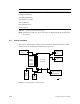
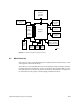
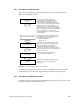
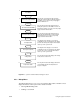
There are four menus that are accessible when the key switch is in the On position.
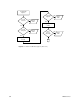
Figure 4-5 describes these menus.
Figure 4-5 System Controller Menus: Key switch On
Continuing to pressing the Scroll buttons will loop through the four menus. When the
function buttons are not used, the display defaults to the CPU activity histogram.
4.5.2 Key Switch in the Manager Position
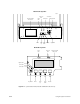
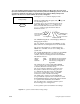
In addition to the four menus just described, the Manager position provides access to eight
more menus. Figure 4-6 describes these menus.
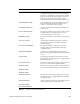
This message is displayed following a
successful boot. The second line indicates
that the first of the four installed processors
is the bootmaster (B) and that the remaining
processors (+) are on-line. A blank space indicates
that the processor is missing or dead, an "x"
indicates the processor failed diagnostics, and a
"d" means that the processor has been disabled.
Note: This message cannot be used to identify the
location of a bad processor. The symbols
representing the processors do not correspond to
physical locations.
Pressing the Execute button displays the last
boot arbitration message sent out by the boot-
master CPU. A typical message is:
Arbitration Complete
Slot xx Proc xx
Pressing the Execute button displays the last
status or error message. Repeatedly pressing
either Scroll button will step through the
contents of the history log. A maximum of 10
messages are stored. The 11th message causes
the first to be discarded. The most recent message
is at the end of the log.
Pressing the Execute button displays the
processor activity as a histogram.
Pressing the Execute button displays the last
arbitration message sent out by the boot-
master CPU.
Checking Memory
B+++
Scroll
Master CPU Selection Menu
Scroll
1.
Event History Log
Scroll
2.
CPU Activity
Scroll
3.
Boot Status
4.