
Technical data


6-2 Interactive Diagnostics Environment (IDE)
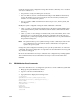
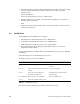
4. Select the appropriate testing modes. The different testing modes change the way that
the tests run. Not all modes are available for all tests. For example, to enable
quickmode, enter
setenv quickmode 1
See the specific board-test section for available modes.
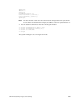
5. Run the specific test. For example, to check all memory addresses to see if they are
writable, type the following:
mem4
6. Interpret the results and either take action to correct the problem or run more tests to
obtain more information.
6.3 IO4 IDE Tests
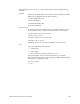
The IO4 IDE tests are divided into four categories:
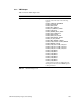
• IO4 interface tests, described in Section 6.3.1, “IO4 Interface.”
• SCSI adapter tests, described in Section 6.3.2, “VME Adapter.”
• VME adapter tests, described in Section 6.3.3, “SCSI Adapter.”
• Everest peripheral controller (EPC) tests, described in Section 6.3.4, “Everest
Peripheral Controller (EPC).”
To start an IO4 IDE test, boot IDE from the Command Monitor. See Section 6.2, “Running
an IDE Test.”
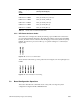
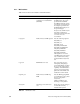
Set the desired report level. The default report level is 2.
Available report levels are shown in Table 6-1.
Each test level prints out messages for that level and all lower levels.
Report Level Function Comments
Level 5 Displays debugging messages. Too much detail for most testing
scenarios.
Level 4 Prints out memory locations as they are
written.
Increases testing time.
Level 3 Prints out one-line functional
descriptions within tests.
Probably the most useful level for
general testing.
Level 2 (default) Prints out only errors and titles. This is the default level.
Level 1 Prints out only titles and pass/fail.
Table 6-1 IO4 IDE Report Levels