
Technical data


5-34 PROM Monitor
Check the current system configuration using either the hinv command, or two variations
of it: hinv -b and hinv -b -v:
• hinv performs exactly as it did in previous releases.
• hinv -b is similar to the info command in POD and provides additional information,
such as: the number of processors present, the amount of memory installed, and
whether or not an IO4 board is present.
• hinv -b -v supplies additional information about each processor, memory bank, and
I/O adapter.
Modify the system configuration using the enable and disable commands:
• enable x y, where x is the board slot number and y is the memory bank number, turns
on the selected memory bank on the MC3 board. The disable command works in the
same way.
• enable x y, where x is the cardcage slot number and y is the CPU number, turns on the
selected processor on the IP19 board. The disable command works in the same way.
Enteringenable x, without specifying the CPU, number turns on every CPU resident in
the specified cardcage slot.
Note: The system must be power-cycled following an enable command, in order for the
new configuration to be activated. The disable command does not require the
system to be power-cycled.
Change the system configuration and then power-cycle the system. Enter one of the hinv
commands. The current configuration is compared to the stored hardware inventory, and
any variations are flagged.
Revise the stored hardware inventory to reflect the new configuration by enteringupdate.
This command rewrites the stored hardware inventory locations in the IO4 board’s
NVRAM.
5.9 PROM Monitor Boot Commands
This section describes how to reconfigure the system to boot from a different system disk.
1. Bring up the System Maintenance menu.
2. Type 5 to enter the Command Monitor.
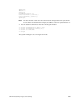
3. Type printenv to display the following screen:
>> printenv
SystemPartition=scsi(0)disk(1)partition(8)
OSLoadPartition=scsi(0)disk(1)partition(0)
AutoLoad=No
dbgtty=multi(0)serial(0)
root=dks0d1s0
nonstop=0
rbaud=19200
TimeZone=PST8PDT
console=d