
Technical data

5-12 PROM Monitor
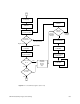
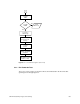
31. Initing graphics...
Displayed when we initialize the graphics device (if any).
32. Starting slaves...
Displayed when we kick the slave processors into the IO4 PROM slave loop.
33. Startup complete...
Displayed when we’ve finished initializing everything and we’re ready to display the
main menu.
At this point, either the boot menu appears or the system autoboots.
5.4 Power-On Diagnostics Commands
The power-on diagnostics (POD) provide an interface that allows the state of the system to
be examined and modified. The PROM monitor can automatically drop into POD mode
during system power-up, or in the event of an unexpected exception or diagnostic failure.
POD mode can be entered manually, using the System Controller Debug Settings menu, or
manually selected from the System Maintenance Menu (select5, then type pod). The POD
commands that are useful as fault isolation tools are described in the following paragraphs.
Note: Set bit 5 in the Debug Settings menu to 1 in order to enter POD mode (Section 4.5.2,
“Key Switch in the Manager Position”). The POD mode prompt is POD xx/yy>,
wherexx is the slot number of the current processor andyy is the CPU on the IP19
or IP21 board.
Kill an individual microprocessor on the CPU board:
At the POD prompt, use either thedisable or fdisable commands. disable sets
the disable bit in the stored hardware inventory. fdisable turns the specified
processor off by writing to the CPU enable register. Both commands use
the format disable/fdisable x y, where x is the cardcage slot number and y is
the CPU number.
Note: The disabled processor is unable to write to memory. It remains
disabled until the system is power-cycled, or the control register is
rewritten with f and the reset command is typed. Also, be aware
that the IO4 boot PROM Monitor is the preferred method of
enabling and disabling boards.
List the physical locations of all boards installed in the system:
Type info to display the board inventory.
Display the contents of all of IP19 or IP21 registers:
Type dr all.
Display the configuration of a specific board:
Type devc x, where x is the slot number of the selected board.
Note: The devc command will not work if memory is not configured.
Display the configuration of a specific memory board:
Type dmc x, where x is the slot number of the selected board.