
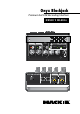
Owner`s manual
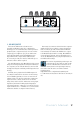

Owner's Manual 3
Part No. SW0865 Rev. C 10/10
©2010 LOUD Technologies Inc. All Rights Reserved.
BJs rule! Blonde jokes, Bon Jovi, B.J. and the Bear, Ben and Jerry's, blue
jeans, band jams, bungee jumping, Billy Joel, bon jour's, Bijou Phillips (ok,
that's a stretch) and, of course, the Mackie Onyx Blackjack 2x2 USB
Recording Interface ...any BJs we missed here?
3. [For Mac users; PC users will have already
completed this step during the driver
installation.] Push the USB cable securely into
the USB connector on the rear panel of the
interface, and plug the other end into any open
USB slot of the computer.
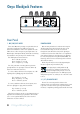
4. If your microphone requires phantom power,
turn on the 48V phantom power button.
5. Before turning on the studio monitors or
amplifier(s), turn up the input gain and "tap
check" the microphone to make sure the
SIG/OL LED illuminates green.
6. Ensuring that you are not too close to them (or
you may hear deafening feedback), turn up the
studio monitors or amplifier(s), turn up the
input monitor [TO MON] knob to about
3 o'clock, then slowly turn up the MONITOR
knob while continuing to tap check to ensure
that the analog inputs are audible through the
monitors. Headphones may also be used to
check levels.
7. Now open your DAW of choice and get to work!
Other Notes
• Whenshuttingdown,turnoffanypower
amplifiers or powered speakers first. When
powering up, turn them on last. This will
reduce the chance of turn-on or turn-off
thumps.
• Alwaysturndownthephoneslevelwhen
making connections or doing anything that may
cause loudness in the headphones. This will
help protect your hearing.
• Alwaysturndownthemonitorlevelwhen
making connections to the interface. Better yet,
shut down the computer first.
• Savetheshippingbox!
Quick Start
We realize that you must be really keen to
try out your new Onyx Blackjack 2x2 USB
Recording Interface. But please read the
safety instructions on page 2, then have
a look through some of the features and details in this
manual first.
Note: The Blackjack is class-compliant and will work
right out of the box. However, if you are using it in
conjunction with a PC running Microsoft Windows, you
should download and install the latest ASIO driver from
http://www.mackie.com/products/onyxblackjack/
to achieve the best possible performance.
Setup
Use the interface in a nice clean and dry environment,
free from dryer lint and dust bunnies.
Zero the controls
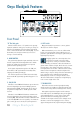
1. Fully turn down all the knobs to minimum, fully
counter-clockwise. Yup, all of five of 'em!
2. Make sure all buttons are in the out position.
Only four here!
Connections and Setup
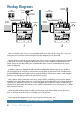
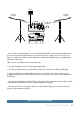
1. Before plugging into a computer, connect the
TRS 1/4" monitor outputs of the interface to
the line-level inputs of your studio monitors or
amplifier(s). Make sure the studio monitors or
amplifier(s) are off for the time being, as well.
2. [For PC users; Mac users may ignore this step.]
Prior to connecting the device, make sure to
download the latest driver software from:
http://www.mackie.com/products/onyxblackjack/
Instructions for installing the driver are
included in the .zip file located on the
product page. After running the driver
installation, you may return to these
instructions to check basic functionality.