
User guide




40
IN BREAK RESUME OUT
Monday- Saturday 11:00pm 3:00am 4:00am 6:00am
IN BREAK RESUME OUT
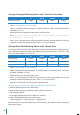
Morning Shift 8:00am 12:00am 1:00am 4:00am
Evening Shift 4:00pm 8:00pm 9:00pm 12:00am
Night Shift 12:00am 4:00am 5:00am 8:00am
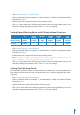
Setting Overnight Working Roster with 1 Break As Overtime
• Click System Settings > Add Schedule
• Select a schedule code, for example “4” and describe it as “Office” and select the Work
Schedule as
Weekly
• Define all the rules required for the normal working roster.
Note: For this type of schedule, go to Clocking Schedule > General > “Work time record into OT and Done
column considered as…,” please choose “OT”
• Click “Save” once done and it will bring you back to the main page where you can see
schedule 4 being displayed onscreen. Click Close to save settings.
Setting Multi-Shift Working Roster with 1 Break Only
For factories that are running on shifts, they usually adopt multi-shift working roster for
their employee. Employees are usually allowed to work on more than 1 shift. Let’s take
this roster and configure it in TCMS V2
• Click
System Settings > Add Schedule
• Select a schedule code, for example “5” and describe it as “Morning Shift” and select
the Work Schedule as “Daily”
• Define all the rules required for the roster.
• Click Save once done and it will bring you back to the main page where you can see
schedule 5 being displayed onscreen. Click Close to save settings.
• Repeat the same steps for Evening Shift and Night Shift.
So now, you have 6 types of clocking schedules in your TCMS V2
1. Normal Working Roster with 1 Break Only
2. Normal Working Roster including 2 Breaks Without Overtime
3. Flexi-Working Roster
4. Overnight Working Roster with 1 Break As Overtime
5. Multi-Shift Working Roster with 1 Break Only
• Morning shift (5) • Evening Shift (6) • Night Shift (7)
Now that your have learned about Duty Roster Settings, let’s explore how to configure
group duty rosters.