
Personal Computer Reference Guide
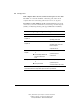
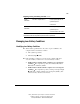
Table Of Contents
- Notice
- Contents
- About This Guide
- Getting Started
- Taking a Look at the Computer
- Using the Keyboard
- Managing Power
- Upgrading Your Computer
- Mobile Expansion Unit (available on select models)
- Using an Internal Modem (available on select models
- Using PC Cards
- Using Audio Features
- Using the Infrared Port
- Securing the Computer
- Intelligent Manageability
- Maintenance, Shipping, and and Travel
- Configuration and Diagnostic Utilities
- Troubleshooting
- Compaq Customer Support
- Regulatory Notices
- Electrostatic Discharge
- Specifications
- Index

4-5
Writer: J Abercrombie Project: Chapter 4 Comments: 113733-001
File Name: E-CH04.doc Last Saved On: 5/18/99 2:44 PM
COMPAQ CONFIDENTIAL - NEED TO KNOW REQUIRED
Beginning, Leaving, or Resuming Your Work
Continued
Initiate
Hibernation
Press Fn + suspend button.** Power/suspend* light turns off.
System beeps twice.
Screen clears.
Restore from
Hibernation
Press power button. Power/suspend* light turns on.
System beeps once.
Your work returns to the screen.
*In Windows 98 the term
Standby
replaces the term
Suspend.
**In Windows 98 the term
sleep button
replaces the term
suspend button.
Managing Low-Battery Conditions
Identifying Low-Battery Conditions
■ When a battery pack that is the only source of power available to the
computer reaches a low-battery condition
❏ The system beeps 5 times.
❏ The battery light blinks.
■ If the low-battery condition is not resolved, the computer will enter a
critical low-battery condition. In a critical low-battery condition,
❏ If Hibernation is enabled and the computer is on or in Suspend
(Standby)
The computer beeps twice, then initiates Hibernation.
Hibernation is enabled by default.
❏ If Hibernation is disabled and the computer is on or in Suspend
(Standby)
The computer beeps twice, and the power/suspend light
blinks. The computer remains briefly in Suspend (Standby), then
shuts down and your unsaved work is lost.