
Personal Computer Reference Guide
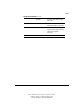
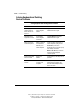
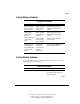
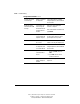
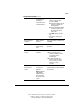
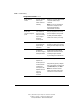
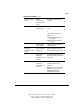
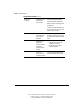
Table Of Contents
- Notice
- Contents
- About This Guide
- Getting Started
- Taking a Look at the Computer
- Using the Keyboard
- Managing Power
- Upgrading Your Computer
- Mobile Expansion Unit (available on select models)
- Using an Internal Modem (available on select models
- Using PC Cards
- Using Audio Features
- Using the Infrared Port
- Securing the Computer
- Intelligent Manageability
- Maintenance, Shipping, and and Travel
- Configuration and Diagnostic Utilities
- Troubleshooting
- Compaq Customer Support
- Regulatory Notices
- Electrostatic Discharge
- Specifications
- Index

15-14 Troubleshooting
Writer: J Abercrombie Project: Chapter 15 Comments: 113733-001
File Name: P-CH15.doc Last Saved On: 5/18/99 3:23 PM
COMPAQ CONFIDENTIAL - NEED TO KNOW REQUIRED
Solving Keyboard and Pointing
Device Problems
Solving Keyboard and Pointing Device Problems
Problem Possible Cause Solution
Some keys type
numbers instead of
letters and num lock
light is on.
The embedded
numeric keypad is
enabled.
Toggle Fn+Num Lk to disable the
embedded numeric keypad.
Embedded numeric
keypad does not work.
The embedded
numeric keypad is
not enabled.
Toggle Fn+Num Lk to enable the
embedded numeric keypad.
Hotkeys do not work
on external keyboard.
Hotkeys commands
are implemented
differently on an
external keyboard.
To enter a hotkeys command on an
external keyboard, rapidly press the
Scroll Lock key twice, then
immediately press the second key only
of the hotkeys combination.
NOTE: The Fn+F6 hotkeys cannot be
used on an external keyboard
connected by USB.
Keyboard and pointing
device are locked.
QuickLock is
initiated.
To exit QuickLock, enter the power-on
password.
External mouse does
not work.
The external mouse
is not Microsoft-
compatible.
In Computer Setup, select
AdvancedÅDevice Options, then
select the Disable Multiple Pointing
Devices check box.