
Personal Computer Reference Guide
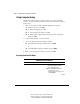
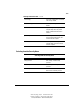
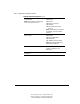
Table Of Contents
- Notice
- Contents
- About This Guide
- Getting Started
- Taking a Look at the Computer
- Using the Keyboard
- Managing Power
- Upgrading Your Computer
- Mobile Expansion Unit (available on select models)
- Using an Internal Modem (available on select models
- Using PC Cards
- Using Audio Features
- Using the Infrared Port
- Securing the Computer
- Intelligent Manageability
- Maintenance, Shipping, and and Travel
- Configuration and Diagnostic Utilities
- Troubleshooting
- Compaq Customer Support
- Regulatory Notices
- Electrostatic Discharge
- Specifications
- Index

14-8 Configuration and Diagnostic Utilities
Writer: Carey Gregg Project: Comments: 113733-001
File Name: O-CH14.doc Last Saved On: 4/1/99 3:28 PM
COMPAQ CONFIDENTIAL - NEED TO KNOW REQUIRED
5. Select a test mode.
■ Interactive Mode—Provides maximum control over the testing
process. You determine whether the test was passed or failed and
may be prompted to insert or remove devices.
■ Unattended Mode—Does not display prompts. If errors are found,
they are displayed when testing is complete.
6. Select the Begin Testing button.
7. Access the test information. To view test information, select a report.
■ Status tab—Summary of the tests run, passed, and failed during the
current testing session.
■ Log tab—Lists tests run on the computer, the numbers of times
each test has run, the number of errors found on each test, and the
total run time of each test.
■ Error tab—Lists all errors found on the computer with their error
codes.
8. To save
■ Test information—Select the Save button on the Log tab.
■ Error reports—Select the Save button on the Error tab.
9. To close Compaq Diagnostics for Windows, select FileÅExit.