
Personal Computer Reference Guide
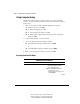
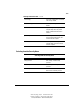
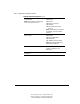
Table Of Contents
- Notice
- Contents
- About This Guide
- Getting Started
- Taking a Look at the Computer
- Using the Keyboard
- Managing Power
- Upgrading Your Computer
- Mobile Expansion Unit (available on select models)
- Using an Internal Modem (available on select models
- Using PC Cards
- Using Audio Features
- Using the Infrared Port
- Securing the Computer
- Intelligent Manageability
- Maintenance, Shipping, and and Travel
- Configuration and Diagnostic Utilities
- Troubleshooting
- Compaq Customer Support
- Regulatory Notices
- Electrostatic Discharge
- Specifications
- Index

14-7
Writer: Carey Gregg Project: Comments: 113733-001
File Name: O-CH14.doc Last Saved On: 4/1/99 3:28 PM
COMPAQ CONFIDENTIAL - NEED TO KNOW REQUIRED
Displaying System Information
1. Access Compaq Diagnostics for Windows.
■ In Windows 95 or Windows 98 select StartÅ SettingsÅControl
PanelÅCompaq Diagnostics.
■ In Windows NT 4.0 select StartÅProgramsÅ Administrative
ToolsÅCompaq Diagnostics.
2. Select Categories, then select a category from the drop-down list.
■ To save the information, select FileÅSave As.
■ To print the information, select FileÅPrint.
3. To close Compaq Diagnostics for Windows, select FileÅExit.
Running a Diagnostic Test
1. Access Compaq Diagnostics for Windows.
■ In Windows 95 or Windows 98 select StartÅ SettingsÅControl
PanelÅCompaq Diagnostics.
■ In Windows NT 4.0, select StartÅProgramsÅ Administrative
ToolsÅCompaq Diagnostics.
2. Select the Test tab.
3. In the scroll box, select the category or device you want to test.
4. Select a test type.
■ Quick Test—Runs a quick, general test on each device in a selected
category.
■ Complete Test—Performs maximum testing on each device in a
selected category.
■ Custom Test—Performs maximum testing on a selected device.
❏ To run all tests listed beneath your selection, select the Check
All button.
❏ To run only the tests you select, select the Uncheck All button,
then select the check box beside each test you want to run.