
User manual


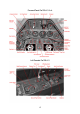


Most buttons and levers are operated by a single left click. Some items such as the gear
handle or the drop tank release use left click to pull and left-release to release.
Multi-position switches such as the bomb selector or the fuel tank display selector use left
and right clicks to step fore and back through the positions. Rotating items like the
compass rose can be dragged with the mouse or dialled with the mouse wheel.
A few items such as the fuses in the rear electrical panel are animated but don’t have a
specific FS function. This is to find a good balance between realism and usability. You
probably don’t want to push 20 buttons before your flight instruments work when changing
a plane in FS.
Some buttons and switches may not be easily in reach from within the default virtual
cockpit view. To come around this issue multiple camera views are arranged, accessible
using the “A” and “Shift + A” keys on the keyboard.
The Radio was only accessible from a service flap on the left fuselage side so frequencies
were pre-tuned and accessible by the pilot via some remote controls in the left cockpit
console. However, we have adopted the wartime cockpit remote controls so that the virtual
FS pilot can fully control and tune – depending on aircraft subtype - COM1, COM2 and NAV1
frequencies from within the virtual cockpit, allowing for Voice Communication with the
Tower and good old-fashioned VOR to VOR hopping. Since there was no visual indication
for the selected frequencies we use the FS tool tip system to gather feedback as you dial
the Radios.
A detailed How-To can be found farther down in this document.
For convenience there's also the default 2d Pop-up Bendix Radio provided.
Flying at Night
There is no gauge back lighting in the Fw 190. However, dials and labels are painted with
“Leuchtpaste”, a fluorescent white paint that illuminates with a green glow in the dark.
16