
User guide


Using Your WIP310
Using Web Services
Cisco WIP310 User Guide 69
3
Getting Stock Quotes
To obtain stock quotes, you create a list of stocks to track.
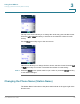
STEP 1 In the Web Services menu, press the Up or Down Arrow key to highlight
Stock
.
STEP 2 Press the Select button.
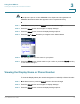
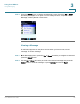
STEP 3 In the
GET QUOTE
field, enter the symbol for the stock you want to track.
STEP 4 Press the Select button. The name is added to the list of stocks.
STEP 5 To view the stock list, press the Back soft key. Press the Power/End Call button to
return to the Home screen.
To add other stocks to the list:
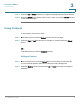
STEP 1 In the list of stocks you are tracking, press Options.
STEP 2 Scroll to
Edit List
and press the Select button.
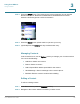
STEP 3 Press Options and scroll to
Add New
. Press the Select button.
STEP 4 In the
GET QUOTE
field, enter the symbol for the stock you want to track.
STEP 5 Press the Select button. The name is added to the list of stocks.
STEP 6 To view the stock list, press the press the Back soft key. Press the Power/End Call
button to return to the Home screen.
To delete a stock from the list:
STEP 1 In the list of stocks you are tracking, press Options.
STEP 2 Scroll to
Edit List
and press the Select button.
STEP 3 Highlight the stock you want to delete.
STEP 4 Press Options and scroll to
Delete
. Press the Select button.
STEP 5 To view the updated stock list, press the press the Back soft key. Press the Power/
End Call button to return to the Home screen.