
User guide


Using Your WIP310
Using Messaging
Cisco WIP310 User Guide 67
3
Accessing Draft Messages
To access draft messages:
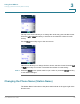
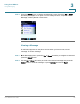
STEP 1 Press the Up or Down Arrow key to navigate to
Drafts
from the Messaging menu.
Press the Select button to enter the Drafts mailbox.
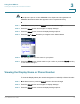
STEP 2 Scroll to navigate to the message. Press the Select button to edit the message.
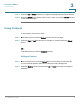
STEP 3 To manage the Drafts mailbox, press Options and press the Up or Down Arrow key
to select one of the following:
• Edit
• Edit Dial—Edit the destination number and place a phone call to that
number. Press the Call button to place the call after editing.
• Delete
• Delete All—Delete all messages from the Drafts mailbox.
Accessing Sent Messages
To access sent messages:
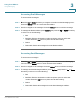
STEP 1 Press the Up or Down Arrow key to navigate to
Sent Items
from the Messaging
menu. Press the Select button to enter the Sent Items mailbox.
STEP 2 Scroll to navigate to the message. Press the Select button to edit the message.
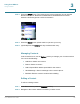
STEP 3 To manage the Sent Messages mailbox, press Options and press the Up or Down
Arrow key to select one of the following:
• Edit
• Edit Dial—Edit the destination number and place a phone call to that
number. Press the Call button to place the call after editing.
• Delete
• Delete All—Delete all messages from the Sent Messages mailbox.