
User guide


Using Your WIP310
Using Messaging
Cisco WIP310 User Guide 66
3
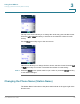
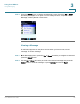
STEP 3 (Optional) After reading the message, press the Options button to choose one of
the following:
• Delete—Delete the message.
• Forward—Send the message to another phone. Enter the number to which
to send the message and press the Select button.
• Reply—Create a reply to the message. Use the keypad to enter a reply, then
either press the Select button to send the message, or press Options and
choose
Save as Draft
to save the reply in the Drafts folder.
• Mark—Mark the message as new.
• Call Back—Call the sender of the message. Press Call to call the sender.
• Delete All—Delete all messages in the Inbox.
Composing a Text Message
To compose a message:
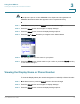
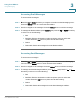
STEP 1 In the Messaging menu, press the Up or Down Arrow key to navigate to
New
Message
and press the Select button.
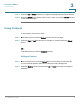
STEP 2 Use the keypad to enter the message. Use the Back soft key to delete characters.
Click the Select button when you are done.
STEP 3 In the
Send to
field, enter the phone number to which you want to send the
message.
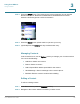
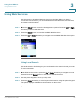
STEP 4 You can then either send or save the message as a draft. Press the Options soft
key and press the Up or Down Arrow key to select
Send
or
Save as Draft
.
If you choose to save the message, you can send it or delete it later.