
User guide


Using Your WIP310
Setting the Date and Time
Cisco WIP310 User Guide 59
3
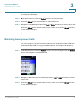
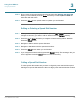
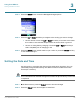
STEP 3 Press the Select button to see the
Backlight Settings
options.
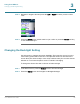
STEP 4 Press the Up or Down Arrow key to navigate to the setting you want to change:
• Screen dim/off—Press the Left or Right Arrow key to increase or decrease
the number of seconds that elapse before the screen dims or goes off.
• Screen on during battery charging—Press the Left or Right Arrow key to
select
Yes
(always on at charging) or
No
.
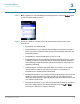
STEP 5 Press the Select button (check mark icon) to confirm or press the Cancel soft key
to exit without changes.
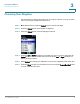
Setting the Date and Time
Use this option to customize the date and time settings for the phone. You can
individually change the Month, Day, Year, Date Format, Hour, Minute and Time
Format (12 or 24 hour).
NOTE Your customized time and date settings are erased if the phone battery is removed
or depleted.
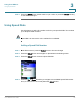
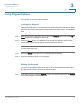
STEP 1 In the Home screen, press the Select button to choose
Settings
.
STEP 2 Press the Select button and navigate to
Date/Time
.